
Corporate Real Estate Hero Section for Divi 5: Split Image Home Search
A clean corporate hero section for real estate agencies featuring a split layout, bold headline, trust stats, and dual CTAs. Built for Divi 5 with IBM Plex Sans and a navy-and-white palette.
Rate this element
Download this section, free
- Divi 5 JSON, imports in seconds
- Commercial license included
- No account needed
Click to view the full page
Overview
The layout divides the hero into two unequal columns: a wide content panel spanning 16 of 24 available units (roughly two-thirds of the row) and a narrower portrait image panel at 8 of 24 units. White fills the section behind both, keeping the composition neutral and easy to brand. Section padding sits at 96px top and bottom on desktop, stepping down to 68px on tablet and 44px on phone, so the proportions hold across every viewport without manual breakpoint tweaking.
The content column opens with a slim uppercase eyebrow in IBM Plex Sans (14px, 600 weight, 1px letter-spacing, color #4f5d73). Below it the H1 runs at 64px with a 1.1em line height and text-wrap: balance, which prevents awkward orphans when you rewrite the headline. The palette uses two blues: navy #13233f for headings and muted slate #4f5d73 for supporting copy, creating a clear hierarchy without introducing extra typefaces or accent colors. Body text lives inside a Group module capped at 560px max-width, preventing the paragraph from stretching uncomfortably wide on large monitors.
Below the body, a flex Group holds two calls to action side by side: a solid primary button (background #1c4a94, white label, 6px radius, 14px/28px padding) and a plain underlined text link styled in headline navy. The flex group uses row direction with 28px column gap and 12px row gap, so both CTAs sit inline on most viewports and wrap to a second line gracefully without needing custom breakpoint rules.
On phone the row switches from nowrap to wrap with column direction, so the copy block appears first and the portrait image follows below. The image is locked to a 4:5 ratio with object-fit: cover, meaning it crops predictably from center regardless of the photo you swap in. The H1 scales from 64px on desktop to 46px on tablet and 36px on phone, maintaining visual weight at every size.
What’s inside
- Asymmetric two-column row with per-column `flexType` overrides (16/24 content, 8/24 portrait image)
- Three-tier IBM Plex Sans type hierarchy: uppercase H4 eyebrow, 64px H1 with `text-wrap: balance`, 19px body text
- Dual CTA group: solid primary Button module (#1c4a94) and underlined secondary text link in a flex `row` with gap
- Portrait Image module locked to a 4:5 aspect ratio with `object-fit: cover` for safe photo swaps
- Body Text wrapped in a Group module with 560px max-width to control line length on wide monitors
- Three-breakpoint section padding (96px desktop / 68px tablet / 44px phone) baked into the section module
- Full mobile stacking via `flexWrap: wrap` + `flexDirection: column` on the Row module, no custom CSS needed
Who it’s for
Residential and commercial real estate agencies that want a polished, professional first impression on a market-area or property-type landing page. Works well for independent brokers, boutique property consultancies, and relocation specialists who need a corporate tone without heavy visual production. The eyebrow slot is built for a short market descriptor (city, district, property type), making the section straightforward to repurpose across multiple location pages within the same site.
Customization tips
The three core brand colors sit in clearly scoped declarations: swap #13233f (headline navy), #4f5d73 (body and eyebrow slate), and #1c4a94 (button) to match your palette. The eyebrow is short by design; keep it under 35 characters to avoid wrapping on tablet. The H1 uses text-wrap: balance, which works best with five to nine words. Replace the stock photo with any portrait-oriented image at 4:5 (800 x 1000px minimum recommended); object-fit: cover handles centering automatically. The column ratio (16/24 content, 8/24 image) is controlled by the flexType value on each column and can be adjusted through Divi 5's sizing panel; test on tablet after any change because the content side tightens as the image widens.
How to install this layout
- Download the layout JSON file from this page.
- Open the target page in the Divi 5 builder.
- Open the portability panel (up/down arrows icon) and choose the Import tab.
- Upload the JSON. Tick “replace existing content” only for full-page imports.
- Check the page at desktop and mobile widths, then swap in your copy and images.
Full walkthrough with troubleshooting: How to Import a Divi 5 Layout.
Questions about Corporate Real Estate Hero Section for Divi 5: Split Image Home Search
How does the layout behave on mobile?
On phones the Row module switches to `flexDirection: column` with `flexWrap: wrap`, so the copy block appears first and the portrait image follows below it. Both columns expand to full width. Section padding drops to 44px top and bottom, and the H1 scales to 36px to keep proportions tight on small screens.
What aspect ratio does the image use, and can I use a landscape photo?
The Image module enforces a 4:5 portrait ratio. A landscape photo will display but `object-fit: cover` will crop the top and bottom significantly. For best results use a portrait-oriented image at least 800 x 1000px; interior shots, facade photography, and lifestyle real estate imagery all work well at this ratio.
Which Divi 5 modules are in this section?
Two Heading modules (H4 eyebrow and H1), one Text module (body copy), two Group modules (one to constrain body width, one for the CTA flex row), one Button module, one Text module (secondary link), and one Image module, all inside a single Section containing one Row and two Columns.
What should I edit first after importing?
Start with the eyebrow text: replace 'Residential sales · Austin' with your market area or property type. Then rewrite the H1 and body paragraph. Swap the image last once the copy is set, so you can judge the composition with your actual headline length before committing to a crop.
Can the secondary CTA be converted to a button instead of a text link?
Yes. The secondary CTA is a Text module containing an anchor tag. Delete it and drag a Button module into the same Group in its place. The Group's row direction and gap settings will position the new button automatically alongside the primary.
Which Divi version does this layout need?
Divi 5. The layout is generated natively for Divi 5 and validated against its real module structure before publication, so it imports clean into the current builder.
Can I use this layout on client websites?
Yes. Every download includes a commercial license covering unlimited sites you own or build for clients. Only reselling or redistributing the layout file itself is prohibited.
More hero sections
Browse all hero sections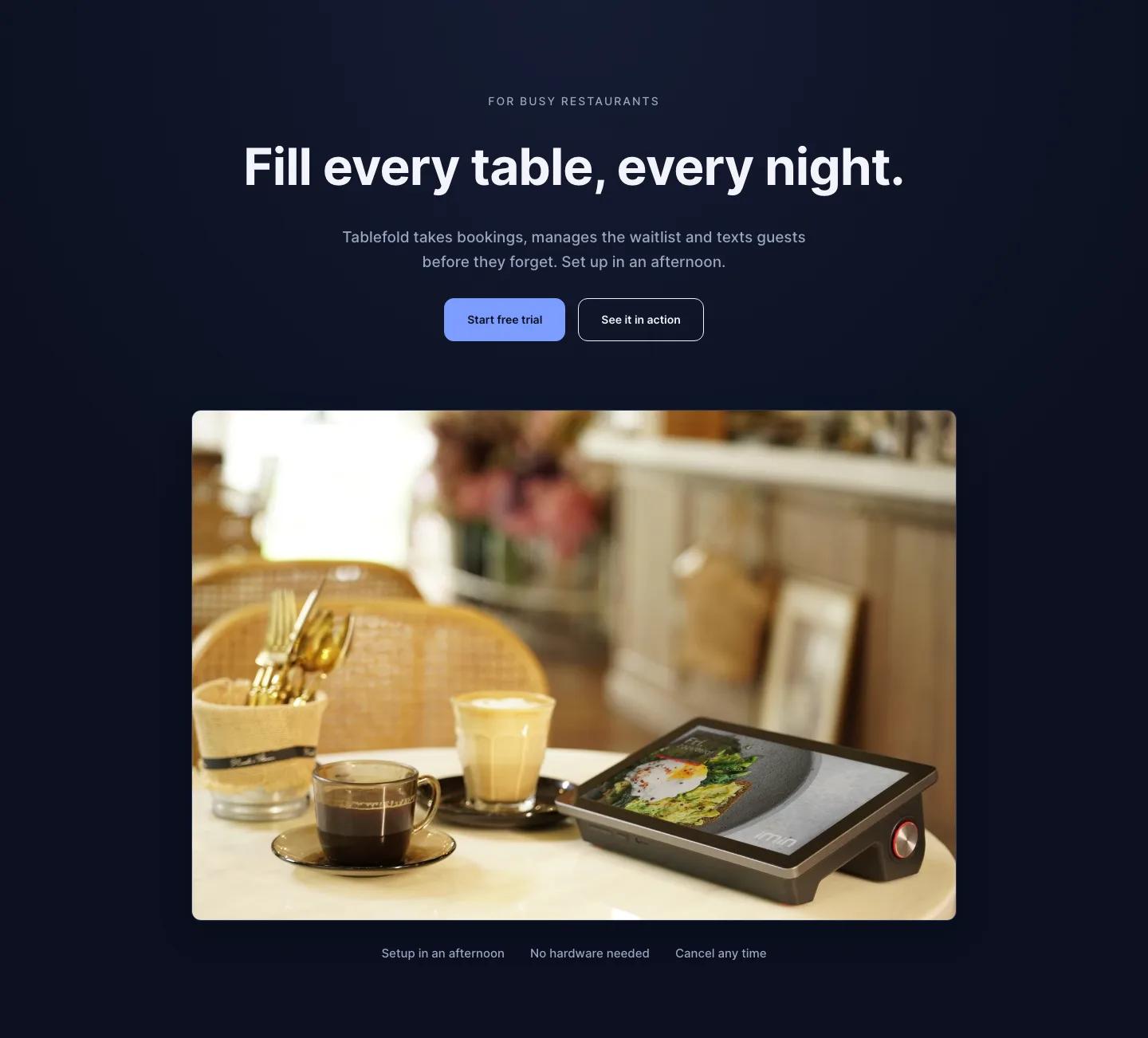
Dark Restaurant Booking Software Hero Section for Divi 5: Product Glow Layout
hero · restaurant · dark
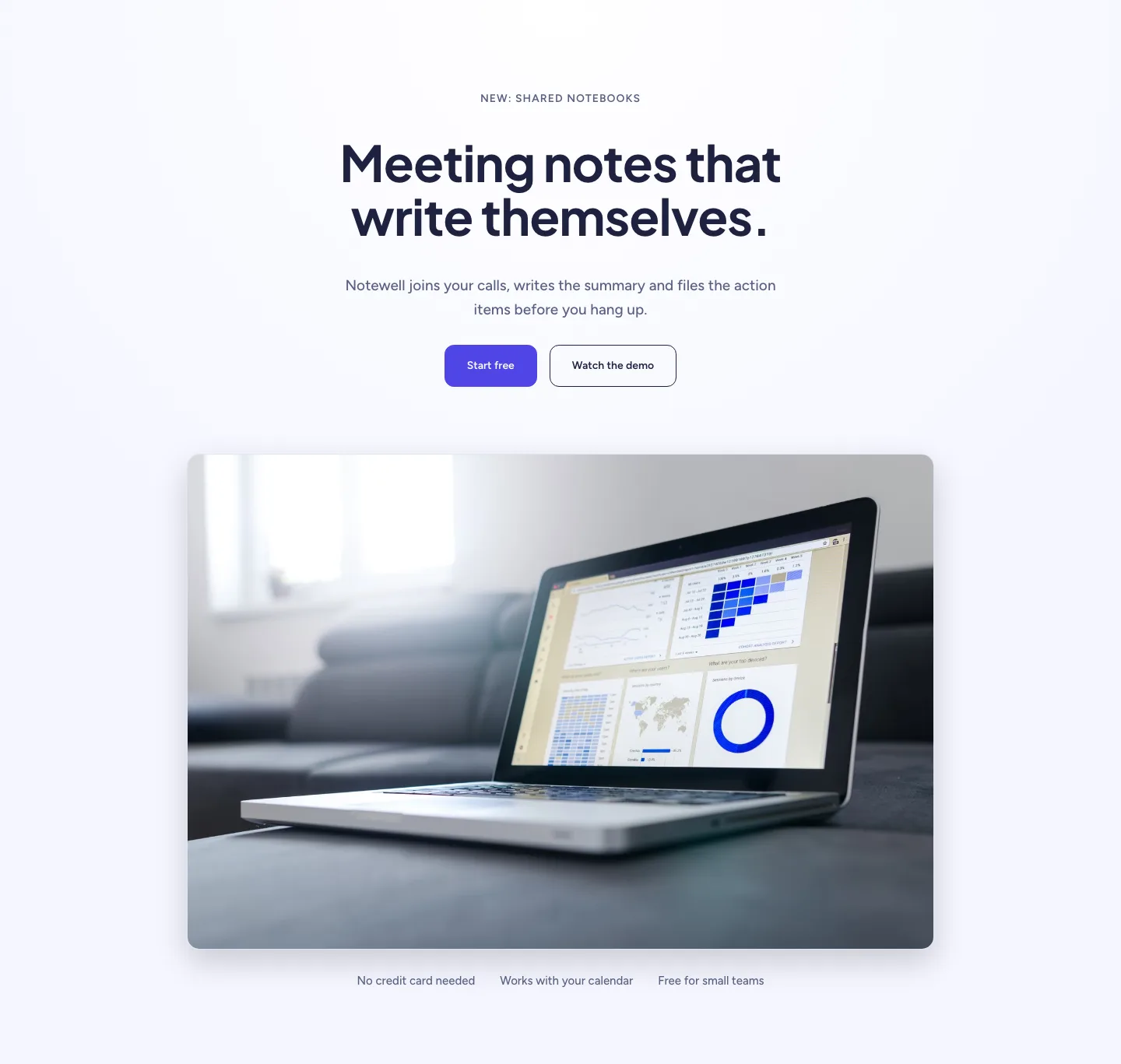
Soft SaaS Meeting Notes Hero Section for Divi 5: Product Glow Layout
hero · saas · minimal
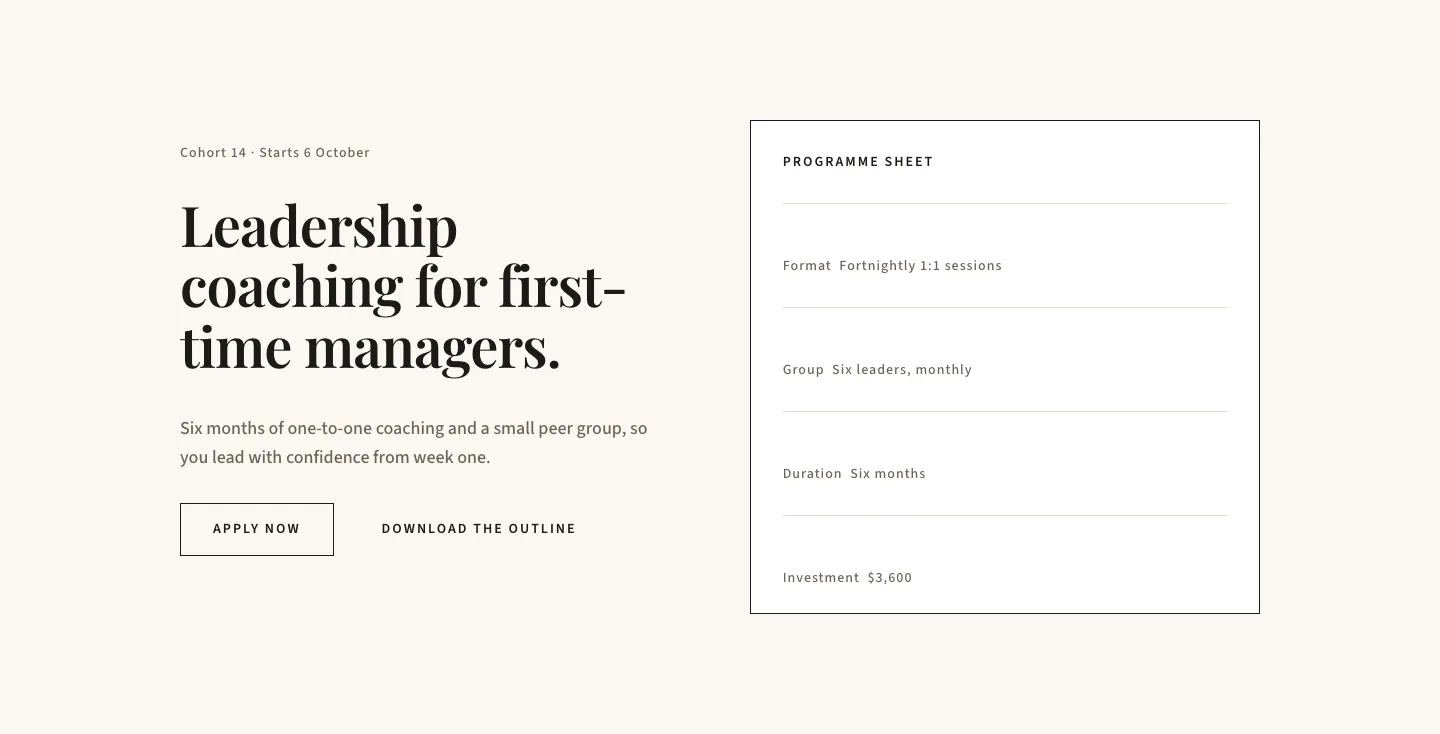
Editorial Executive Coaching Hero Section for Divi 5: Programme Sheet
hero · coaching · minimal
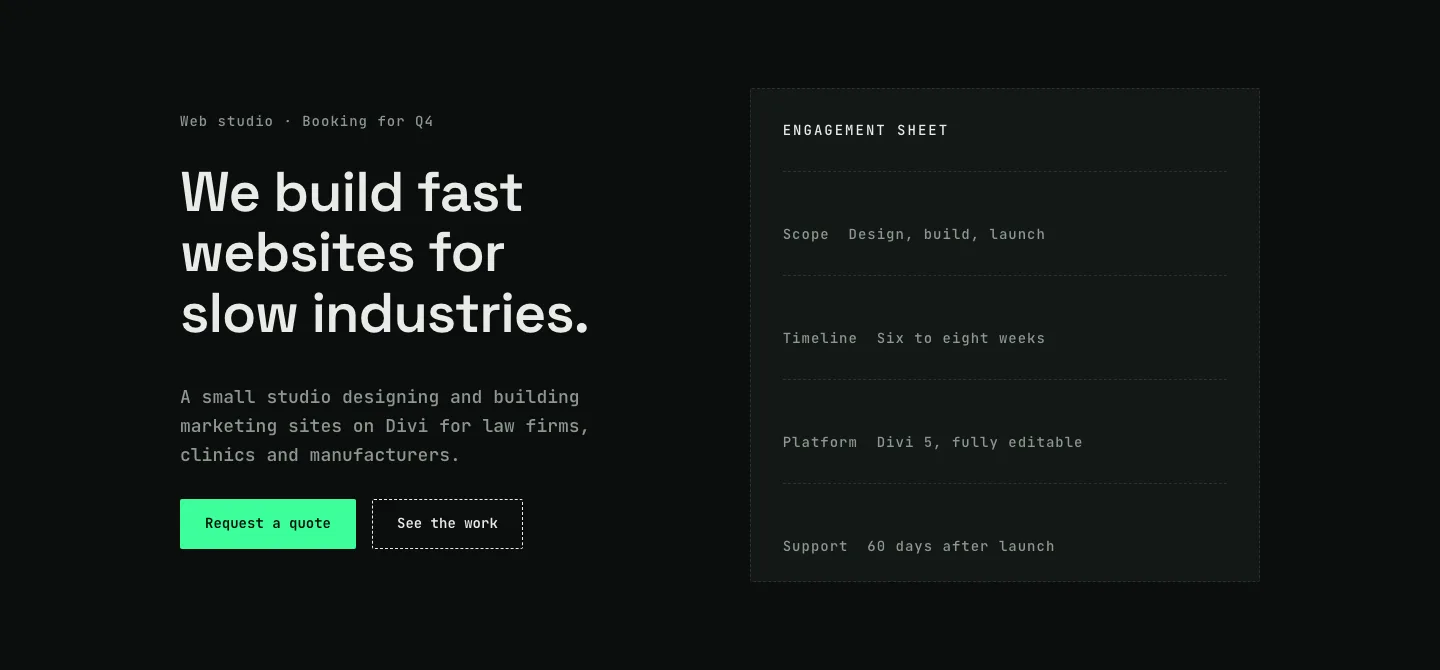
Dark Web Studio Agency Hero Section for Divi 5: Spec Card Layout
hero · agency · dark
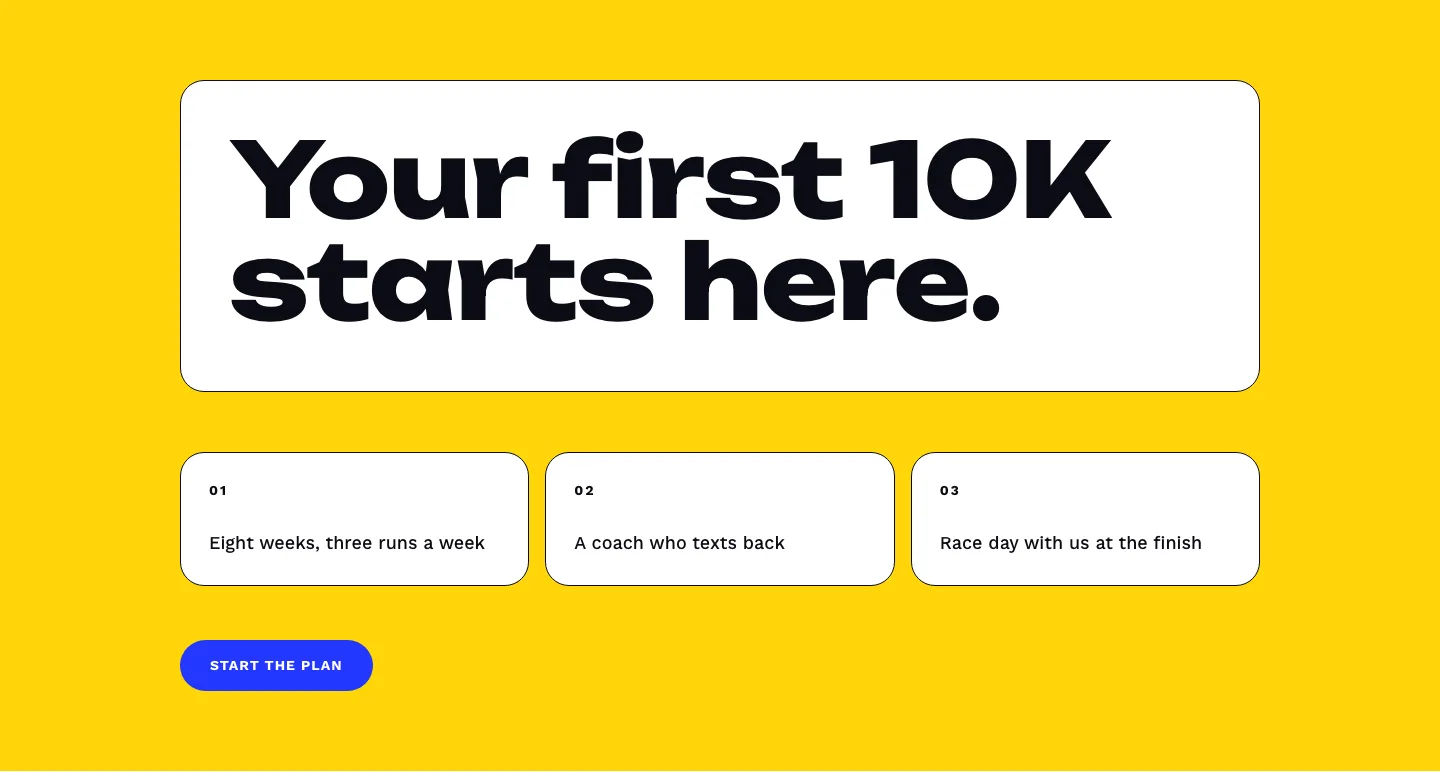
Bold First 10K Running Coach Hero Section for Divi 5: Fitness Bordered Cells
hero · fitness · bold
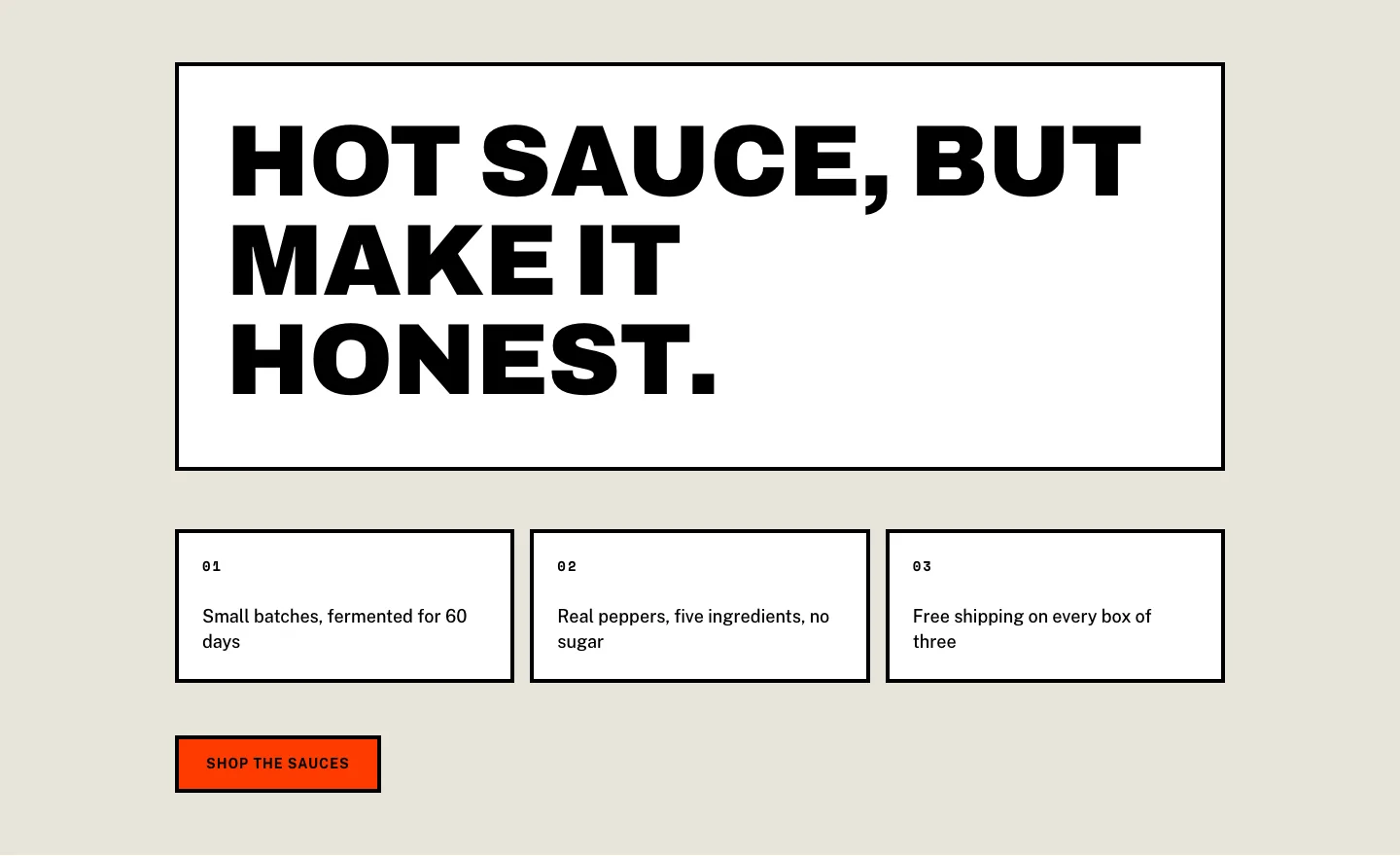
Brutalist Hot Sauce Ecommerce Hero Section for Divi 5: Bordered Cells
hero · ecommerce · bold