
Evermore Weddings — Elegant Wedding_planner Venues Page for Divi 5
Explore hand-picked wedding venues — garden estates, rustic barns and coastal pavilions — curated and visited by the Evermore Weddings planning team. Book a free venue day.
Rate this element
Download this section, free
- Divi 5 JSON, imports in seconds
- Commercial license included
- No account needed
This page ships inside Evermore: Wedding Planner Theme (6 Pages), 6 coherent pages that share one brand.
Click to view the full page
Overview
The layout opens with a white header section built from a single Divi 5 Row split into two columns. The left column takes 16 of 24 grid units and holds a breadcrumb Text module followed by an H1 in Cormorant Garamond at 52px, stepping to 40px on tablet and 32px on phone. The right column, narrower at 8 of 24 units, carries one supporting sentence top-padded at 36px on desktop so it reads alongside the headline rather than below it. A 1px solid border in warm beige (#e8dccf) closes the section without adding visual weight.
The main venue showcase sits on a warm cream background (#f6f1ec) and runs three alternating 50/50 rows. Each row pairs a 4:3 aspect-ratio cover Image module with a text column. Rows one and three place the image on the left; row two reverses the layout and applies a phone order:-1 override on the image column so that on small screens the photo always precedes the text, regardless of the stacking direction. Every text block follows a consistent hierarchy: a numbered label (01, 02, 03) in Cormorant Garamond at 13px with 1px letter-spacing, a venue name heading at 32px, a one-sentence description in Lora at 18px and 1.6em line height, and a plain underlined link. Text columns carry 48px right padding on desktop, 24px on tablet, and none on phone to prevent the copy from stretching across the full viewport.
A second cream section introduces an indoor/outdoor comparison using two equal-column Group modules placed side by side. The left card has a white background and a fully rounded 24px border with 2px dotted navy strokes. The right card inverts to a solid navy fill (#2f3a4a) with the same dotted border treatment and cream type. Each card lists four points using inline Icon plus Text groups: the light card uses Font Awesome cross icons in slate grey (#5a6372) and the dark card uses checkmarks in cream (#f6f1ec). The dark card closes with a pill-shaped button starting at transparent fill with a cream dotted border, switching to a cream fill on hover.
A dedicated FAQ section groups five Toggle modules under a single dotted top rule, each toggle divided from the next by a matching dotted bottom border. Titles render at 28px Cormorant Garamond, answers in Lora at 17px and 1.7em line height. The page closes with a steel-blue CTA section (#8da7c4) that runs as a horizontal flex row on desktop, placing a 48px headline on the left and a pill CTA button plus a short sub-line note on the right. On phone the row stacks vertically with left-aligned items.
What’s inside
- Split-column page header with H1 in Cormorant Garamond at 52px (scaling to 32px on phone) and a narrower right column carrying an intro sentence, closed by a 1px beige bottom border
- Three alternating 50/50 venue rows, each with a 4:3 cover Image module, a numbered label (01/02/03), venue name heading, description, and underlined call-to-action link
- Phone image reordering on the second venue row via a `order:-1` column override so photos always lead text on small screens
- Indoor/outdoor comparison built from two contrast-styled Group cards (white versus navy), each containing four inline Font Awesome Icon plus Text rows
- Pill-shape buttons with transparent fill and dotted borders, inverting to a solid fill on hover, used on both the comparison card and the closing CTA section
- Five Toggle modules for venue FAQs, grouped under a shared dotted top rule with per-toggle bottom dividers matching the same dotted style
- Full-width steel-blue CTA banner using a horizontal flex layout on desktop with headline on the left and button group on the right, collapsing to a vertical stack on phone
- Consistent two-serif type pairing: Cormorant Garamond for all display headings and labels, Lora for all body copy and button text
Who it’s for
This page is built for wedding planners who want to present a curated shortlist of venues with editorial authority rather than a generic grid. It suits boutique planning studios, destination wedding consultants, and venue directories that lead with taste and curation. The indoor/outdoor comparison section makes it particularly useful for planners or venues that regularly field that question from prospective clients. Any business in the wedding, events, or hospitality space that sells a considered, personal approach rather than a long list of options will find the pacing and tone a strong match.
Customization tips
The palette is anchored at three points: the warm cream (#f6f1ec) used for section backgrounds, the dark navy (#2f3a4a) used for headings and the dark comparison card, and the steel blue (#8da7c4) for the closing CTA section. Replacing those three hex values in the relevant section backgrounds and heading color fields will shift the entire page to a different brand without touching typography or spacing.
Venue name headings sit at 32px inside a 520px max-width Group. Keep titles to two or three words to avoid wrapping. Venue descriptions are single sentences at 18px/1.6em; two sentences work, but three will push the paired image out of vertical alignment with the text on desktop. Each comparison card expects four list items and is padded at 44px on all sides. Adding a fifth row will cause the card heights to diverge unless you add matching rows to the other card. All three venue images must be 4:3 landscape crops. The objectFit: cover setting is enforced in the module, so portrait or square images will be center-cropped.
How to install this layout
- Download the layout JSON file from this page.
- Open the target page in the Divi 5 builder.
- Open the portability panel (up/down arrows icon) and choose the Import tab.
- Upload the JSON. Tick “replace existing content” only for full-page imports.
- Check the page at desktop and mobile widths, then swap in your copy and images.
Full walkthrough with troubleshooting: How to Import a Divi 5 Layout.
Questions about Evermore Weddings — Elegant Wedding_planner Venues Page for Divi 5
Do the three venue rows always alternate image left and image right?
Yes. Rows one and three place the image on the left; row two places it on the right. Row two also applies a phone `order:-1` override on the image column so the photo still appears above the text when the row stacks vertically on small screens.
What modules make up the indoor/outdoor comparison cards?
Each card is a Group module with a background color and a 24px rounded dotted border. Inside each Group are a label heading, a subheading, and four inline sub-Groups each containing a Divi 5 Icon module and a Text module. The icons are Font Awesome: cross (f00d) on the white card, checkmark (f00c) on the navy card.
What aspect ratio do the venue photos need to be?
4:3 landscape. The Image module enforces this via the `aspectRatio` setting with `objectFit: cover`, so anything taller than 4:3 will be center-cropped automatically. Replace all three placeholder images before publishing.
Can I add a fourth venue row?
Yes, duplicate any existing row and drop it into the venue section. Keep the alternating image-left/image-right pattern to maintain the page rhythm, and replicate the `order:-1` phone override on the image column in any right-image row.
How many FAQ toggles can the section hold before it looks crowded?
The section currently has five. You can add more by duplicating any Toggle module inside the group. The dotted bottom border is set per toggle, so new items inherit the divider style automatically. Six to seven items is a practical ceiling before the section starts to feel long.
What controls the color of the closing CTA section?
The steel blue (#8da7c4) is set on the section's background color field. The headline and button text in that section are set to navy (#2f3a4a) independently, so if you switch to a darker CTA background you will need to update those color values to maintain contrast.
Which Divi version does this layout need?
Divi 5. The layout is generated natively for Divi 5 and validated against its real module structure before publication, so it imports clean into the current builder.
Can I use this layout on client websites?
Yes. Every download includes a commercial license covering unlimited sites you own or build for clients. Only reselling or redistributing the layout file itself is prohibited.
Included in these packs
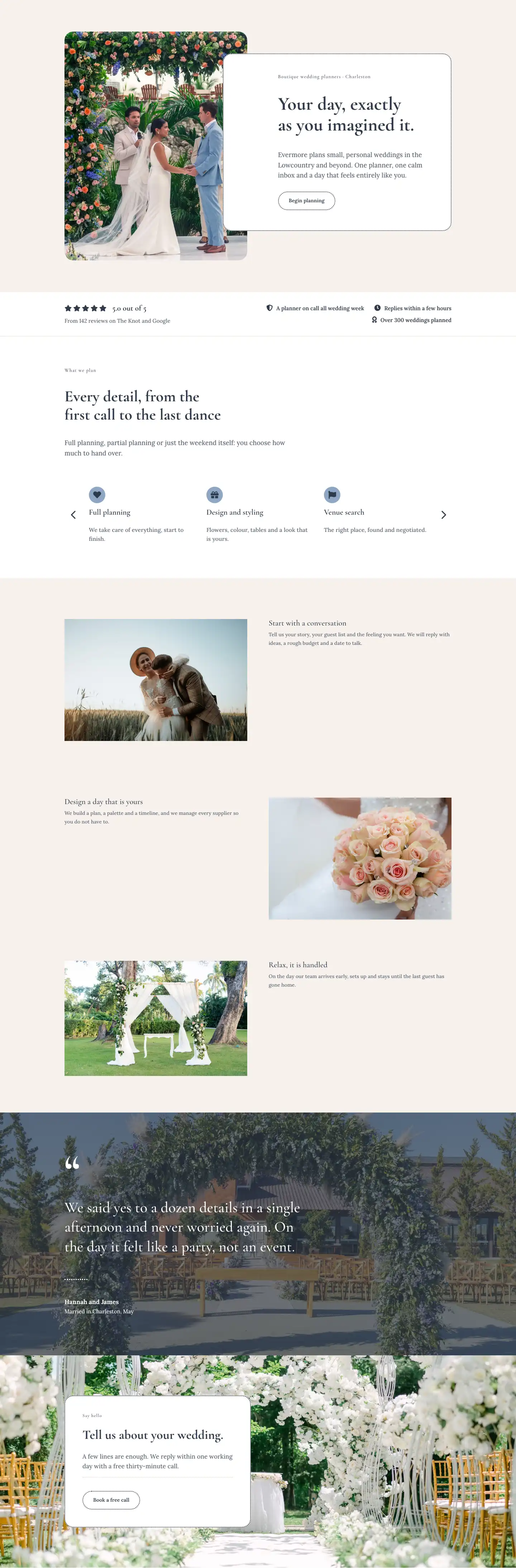
More full landing pages
Browse all full landing pages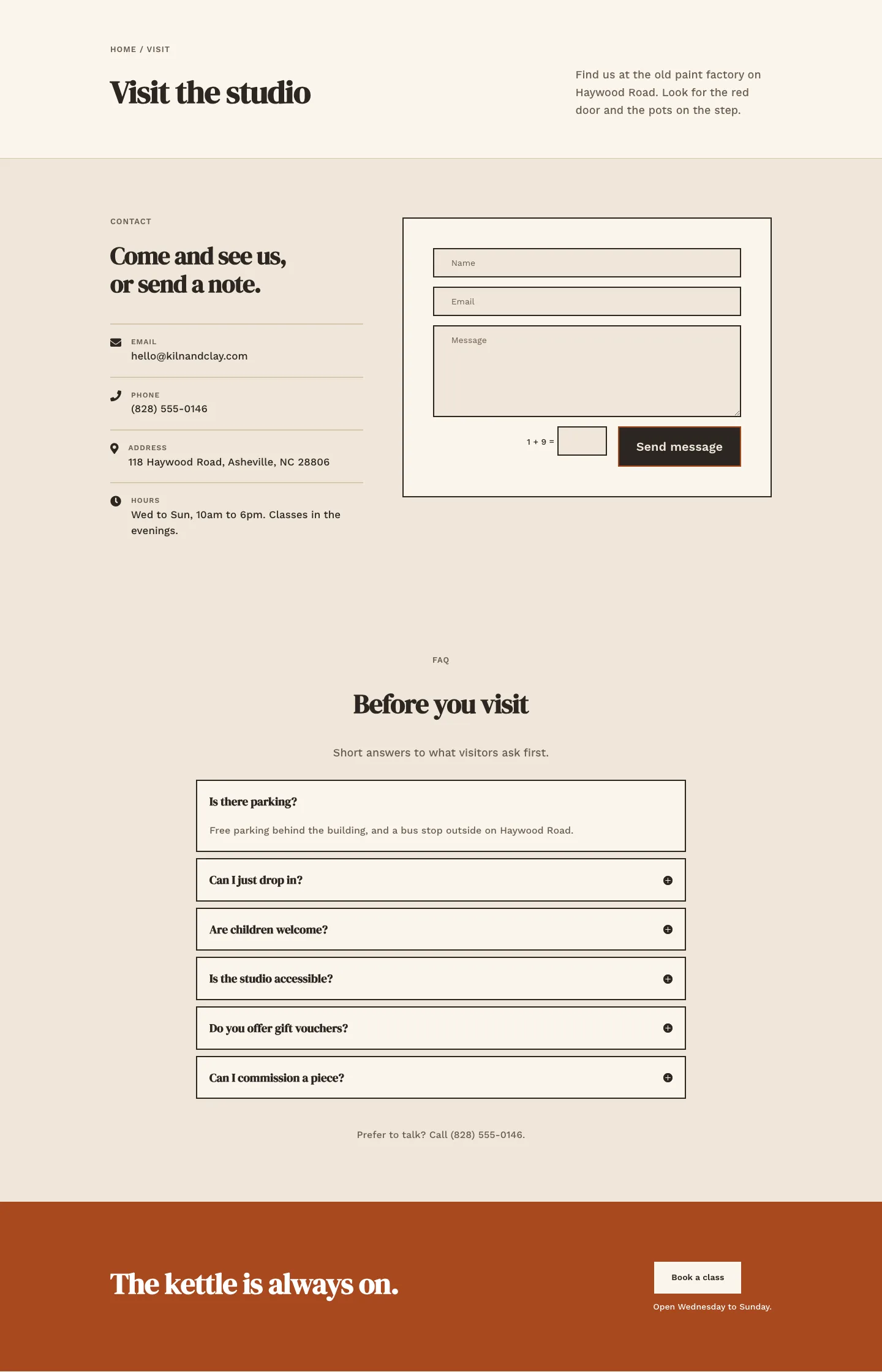
Kiln & Clay — Minimal Pottery_studio Visit Page for Divi 5
full_landing · pottery_studio · minimal
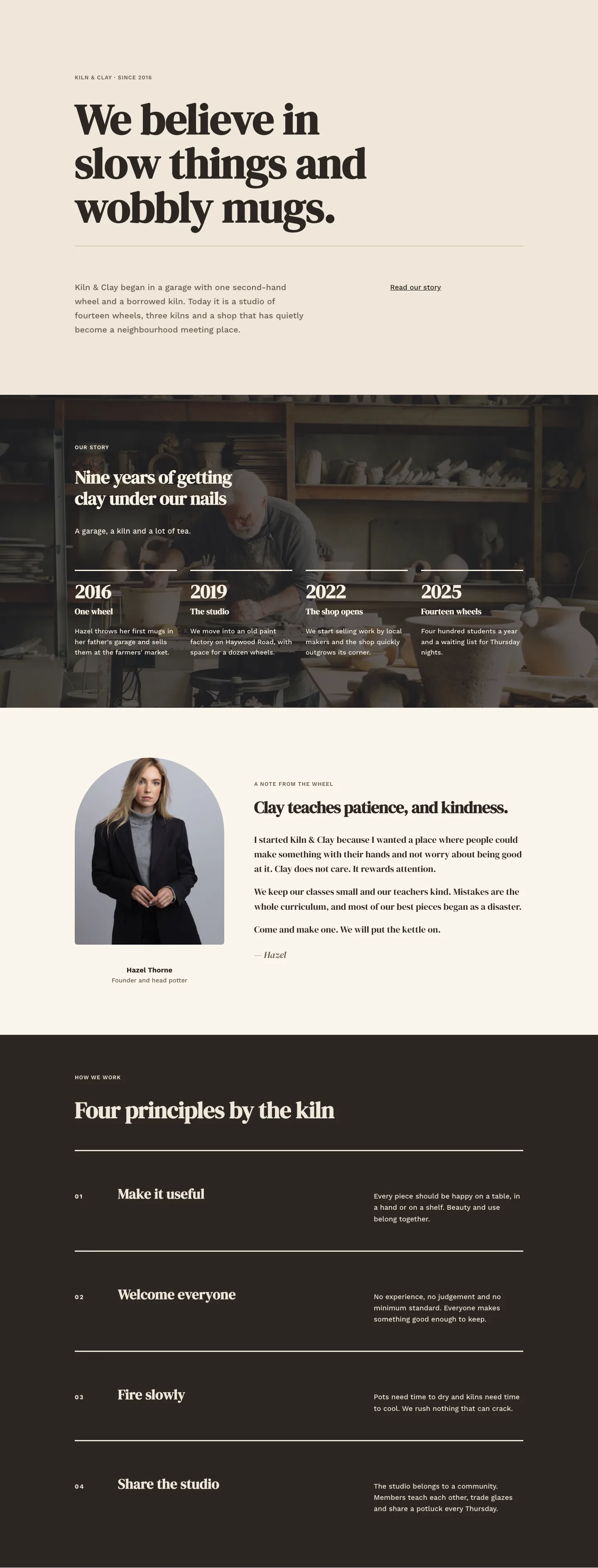
Kiln & Clay — Minimal Pottery_studio Our Story Page for Divi 5
full_landing · pottery_studio · minimal
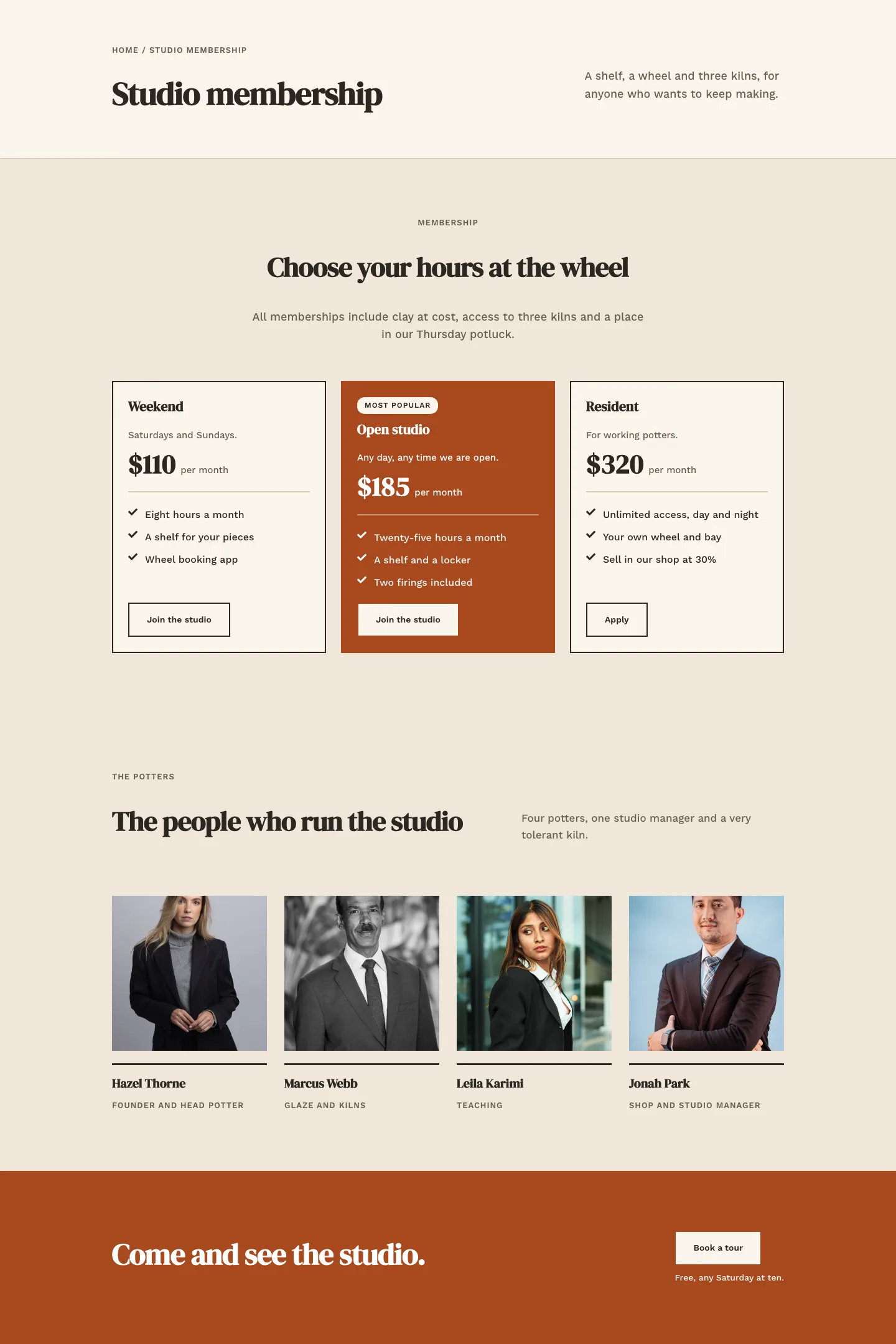
Kiln & Clay — Minimal Pottery_studio Studio Membership Page for Divi 5
full_landing · pottery_studio · minimal
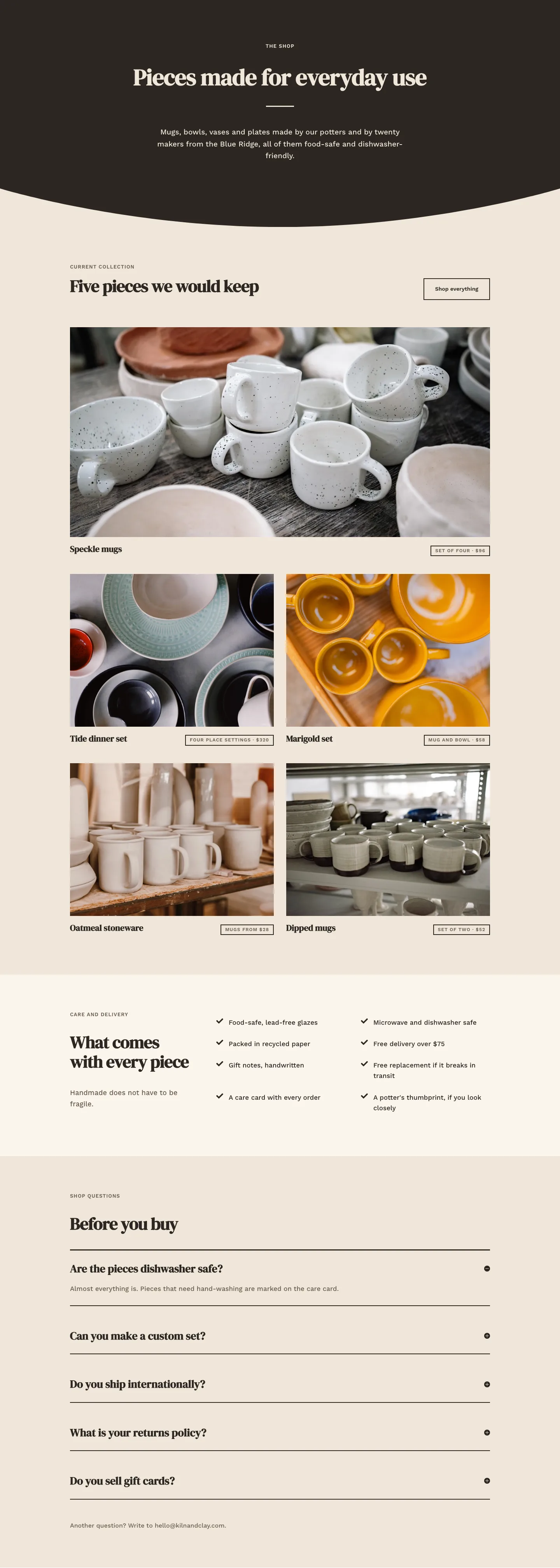
Kiln & Clay — Minimal Pottery_studio The Shop Page for Divi 5
full_landing · pottery_studio · minimal
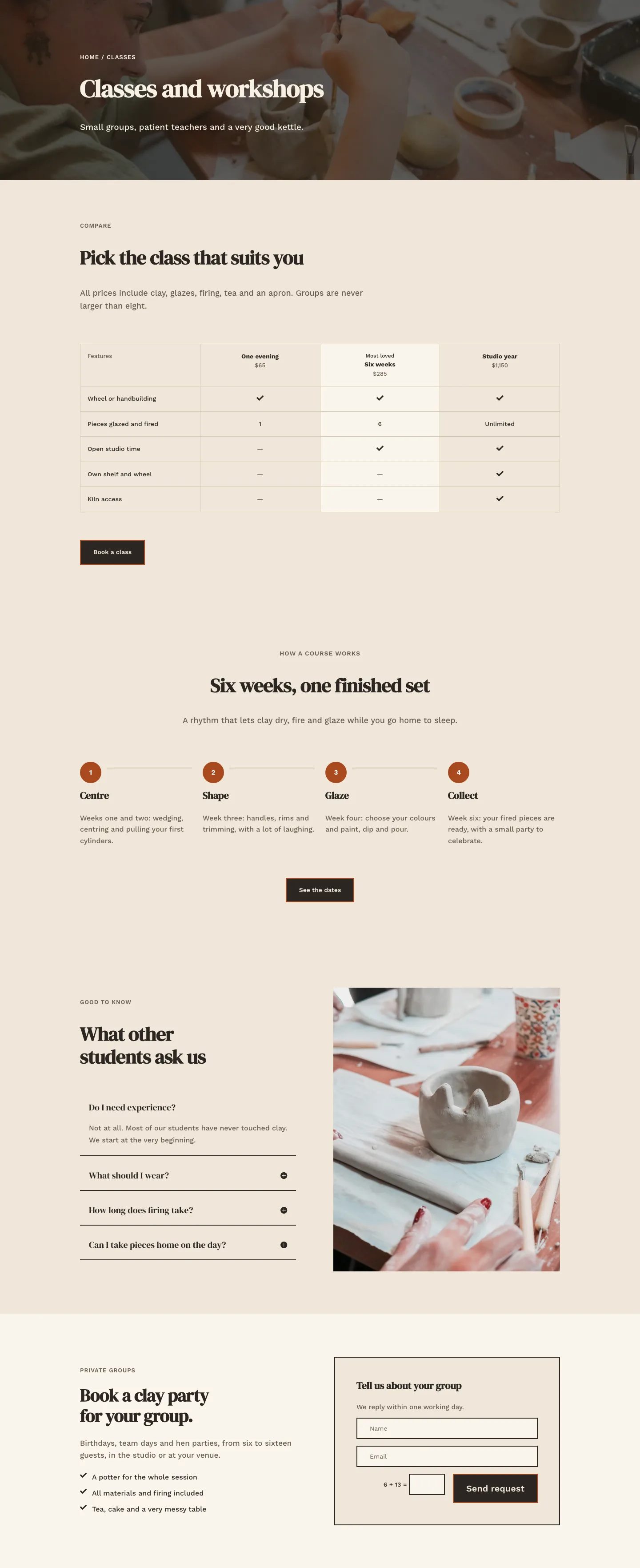
Kiln & Clay — Minimal Pottery_studio Classes Page for Divi 5
full_landing · pottery_studio · minimal
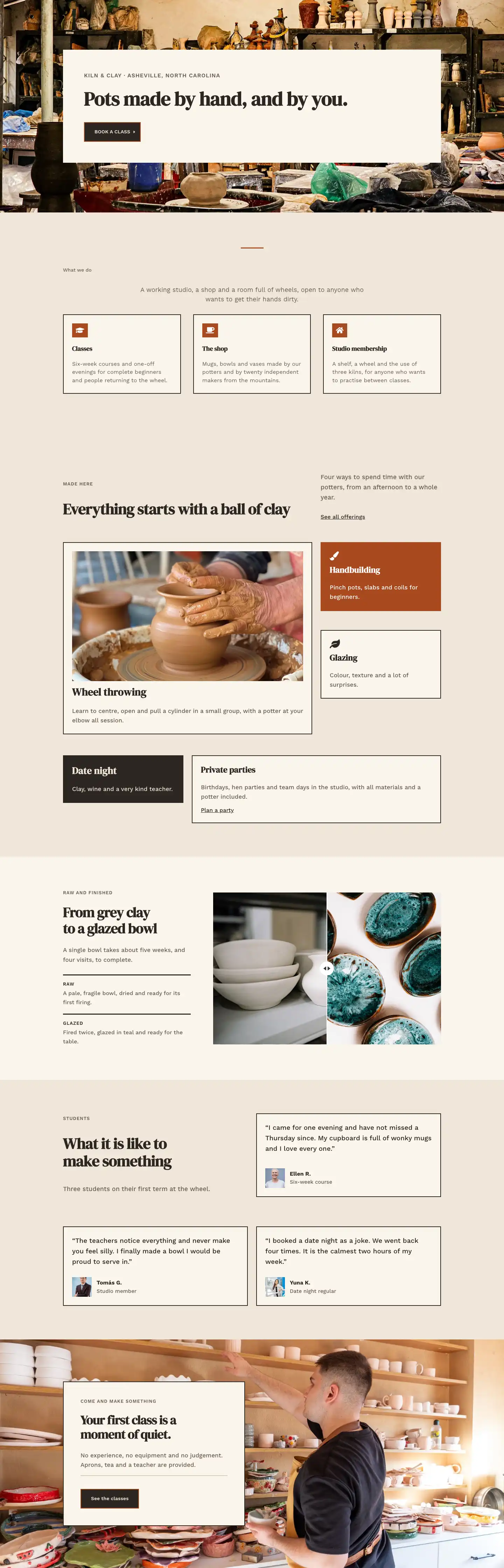
Kiln & Clay — Minimal Pottery_studio Home Page for Divi 5
full_landing · pottery_studio · minimal