
Halcyon Dental — Minimal Dental Treatments Page for Divi 5
A minimal Divi 5 treatments page layout for dental practices. Covers preventive, cosmetic and restorative care with an accordion, feature list, FAQ and booking CTA.
Rate this element
Download this section, free
- Divi 5 JSON, imports in seconds
- Commercial license included
- No account needed
This page ships inside Halcyon: Dental Clinic Theme (6 Pages), 6 coherent pages that share one brand.
Click to view the full page
Overview
The layout opens on a full-bleed hero where a clinical photograph sits behind a uniform 70% deep-teal overlay applied to both gradient stops (rgba(16,52,58,0.7)), keeping the image atmospheric without competing with the reversed type above it. A small breadcrumb in Nunito 13px uppercase and near-white #f1faf8 anchors the visitor's position before the H1 drops at 56px Manrope 700 weight with -1px letter-spacing, scaling cleanly to 32px on phones. A single subhead sits inside a Group module constrained to 600px max-width, keeping the reading line short on wide displays. Section padding steps explicitly from 120/104px on desktop down to 64/56px on phones, so the hero never collapses to a cramped strip on small screens.
The second section holds a 50/50 split on the mint #eaf6f3 background: an Accordion module on the left and a portrait image at a fixed 4:5 aspect ratio on the right. The accordion uses bottom-border-only styling (each item divided by a 1px #cfe6e1 line with no outer radius or card shadow), so the four treatment categories read as a clean list rather than collapsible boxes. The first item opens by default. On phones the row wraps to a column with the image below the accordion, and the left column gains 32px of bottom padding to separate the two blocks cleanly before stacking.
The third section switches to white and presents a centred heading group with three nested max-widths (880, 720, and 640px), creating a natural typographic margin on wide viewports. Below it, five icon-and-text rows cover the components of a new-patient visit. Each row pairs a Font Awesome icon (24px, #10343a) with an H3 heading and a short body line; rows are separated by thin #cfe6e1 dividers, except the opening rule which uses a 2px #10343a line to mark the start of the list clearly.
The FAQ section uses a split header row where the H2 spans roughly 14 of 24 columns and a ghost-outlined 'Ask a question' button sits bottom-aligned on the narrower right column, collapsing to a stack on phones. Six Q&A pairs below run in a two-column grid, each opened by a 2px #10343a top border that marks questions without card padding or extra chrome. The layout closes on a solid teal strip at #0f7c80: a horizontal flex row pairing a 48px white Manrope heading with a white-fill 'Book a visit' button and a small reassurance line, the row collapsing to a left-aligned column on phones.
What’s inside
- Full-bleed hero with a clinical Pexels photograph, dual-stop dark-teal gradient overlay at 70% opacity, breadcrumb navigation in Nunito uppercase, and a responsive H1 scaling from 56px to 32px across three defined breakpoints
- Accordion module with four treatment categories (first item open by default), bottom-border-only dividers in `#cfe6e1`, no outer border radius, on the mint `#eaf6f3` background
- 50/50 split row pairing the accordion with a 4:5 portrait image at `object-fit: cover`, vertically centred on desktop and stacking cleanly to a column on mobile with explicit padding separation
- Icon-list section with five Font Awesome icon + H3 + body rows separated by alternating 2px (`#10343a`) and 1px (`#cfe6e1`) horizontal rules on a white background
- Two-column FAQ grid with six Q&A groups, each marked by a 2px `#10343a` top border, plus a split header row containing an outlined ghost button wired to a contact or booking destination
- Full-width teal CTA strip (`#0f7c80`) with a horizontal heading-plus-button layout and a secondary reassurance line, wrapping to a left-aligned column on phones
- Three-breakpoint responsive padding on every section (104px / 72px / 48px desktop, tablet, phone) with dedicated overrides on the hero and FAQ header rows
- Dual-font system throughout: Manrope 700 for all headings with tight negative letter-spacing, Nunito for body text, labels, and breadcrumb, all weights and sizes embedded directly in the layout
Who it’s for
Designed for general and cosmetic dental practices that want a calm, trustworthy treatments page without a heavy corporate look. Works equally well for private clinics building a full-site treatments overview, NHS or mixed practices differentiating on patient experience, and dental marketing agencies building sites for multiple clients. The plain-English accordion framing and anxiety-focused FAQ also suit orthodontic, periodontic, and oral-surgery specialties where patient hesitation is a real conversion barrier. Web designers working in the healthcare niche will find the structured sections and neutral teal palette adaptable to related medical and wellness practices with minimal copy changes.
Customization tips
The palette uses five hex values set at the module level: #10343a (dark teal for headings, icons, and borders), #4c6a6e (body text), #eaf6f3 (mint section backgrounds), #0f7c80 (CTA strip), and #cfe6e1 (thin dividers). A search-and-replace across the layout JSON handles a full rebrand in one pass. The hero background image is a standard Pexels URL; replace it with any 1920px-wide photo and the gradient overlay applies automatically. Keep accordion item body copy to one or two short sentences per item (the four sample lines average around twelve words each). The 4:5 portrait image in section two expects a tall crop; landscape or square images will be forced into that ratio by object-fit: cover and will lose content at the top and bottom. The ghost 'Ask a question' button links to # by default, so update the href to point to your contact form or booking page before launch.
How to install this layout
- Download the layout JSON file from this page.
- Open the target page in the Divi 5 builder.
- Open the portability panel (up/down arrows icon) and choose the Import tab.
- Upload the JSON. Tick “replace existing content” only for full-page imports.
- Check the page at desktop and mobile widths, then swap in your copy and images.
Full walkthrough with troubleshooting: How to Import a Divi 5 Layout.
Questions about Halcyon Dental — Minimal Dental Treatments Page for Divi 5
The hero uses a background image and a gradient overlay at the same time. Will swapping the image URL remove the overlay?
No. The gradient is configured inside the Section module's background decoration with `overlaysImage: on`, so it applies independently of which image URL is set. Replace the Pexels URL with your own 1920px-wide photo and the dark-teal tint remains intact. To change the strength, edit the alpha value in the two gradient stop colours (`rgba(16,52,58,0.7)` becomes `rgba(16,52,58,0.4)` for a lighter tint, for example).
Can I add more items to the accordion, or does the four-item count affect how the layout looks?
Four is the designed count, balanced against the 4:5 portrait image beside it. You can add two or three more items comfortably; the left column will simply grow taller than the fixed-ratio image. Below three items the image will sit with excess empty space beside it. Staying between three and seven items keeps the visual balance workable on desktop.
The icon-list section has a standalone Divider module between each row. If I delete a row, do I need to delete its divider too?
Yes. Each Divider is a separate module placed between the Group modules. Deleting a row's Group leaves the adjacent Divider behind, producing a double rule or an orphaned line. In the Divi 5 visual builder, delete the Group and the Divider immediately below it at the same time.
What aspect ratio does the portrait image in section two use, and what crop works best?
The image module is set to a 4:5 ratio with `object-fit: cover`. A tall portrait crop between roughly 800x1000px and 1200x1500px fills the frame without quality loss. Landscape or square images are forced into that ratio automatically, cropping away significant content at the top and bottom, so a tall portrait orientation is strongly recommended.
The FAQ section shows all six answers at once with no expand/collapse. Is that intentional?
Yes. The Q&A pairs are built from Group, Heading, and Text modules styled with a 2px top border, not from Accordion items, so all answers are always visible. If you want collapsible behaviour, replace each Group with a Divi 5 Accordion item and re-apply the 2px top-border styling to match the existing look.
What should I edit first to make the layout feel like my own practice rather than a template?
Start with the H1 in the hero ('Treatments'), the four accordion titles and their body lines, and the CTA heading ('Ready for a calmer dental visit?'). These are the five pieces of text a visitor reads in the first few seconds. Once those reflect your real services and tone, updating the icon-list rows and the six FAQ pairs will feel consistent rather than piecemeal.
Which Divi version does this layout need?
Divi 5. The layout is generated natively for Divi 5 and validated against its real module structure before publication, so it imports clean into the current builder.
Can I use this layout on client websites?
Yes. Every download includes a commercial license covering unlimited sites you own or build for clients. Only reselling or redistributing the layout file itself is prohibited.
Included in these packs
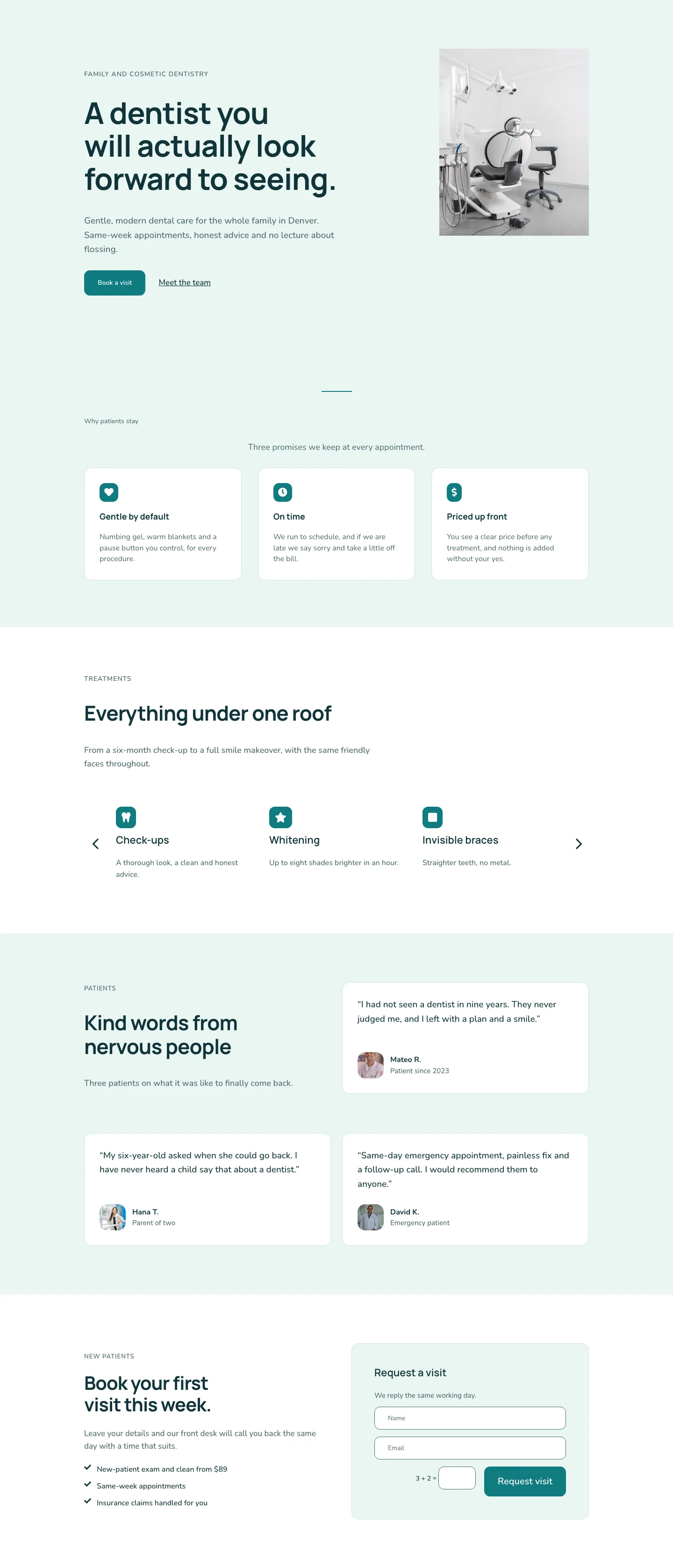
More full landing pages
Browse all full landing pages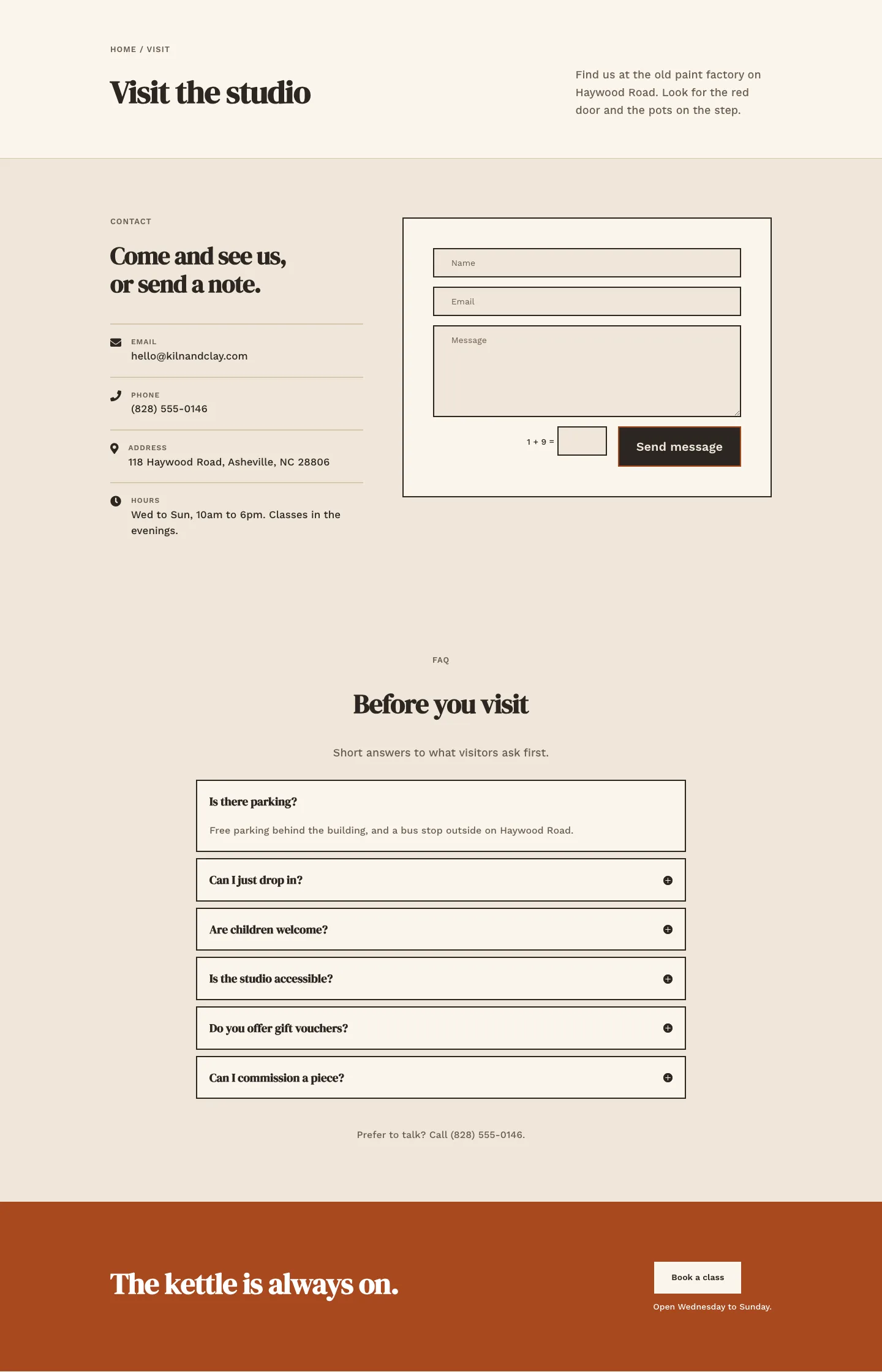
Kiln & Clay — Minimal Pottery_studio Visit Page for Divi 5
full_landing · pottery_studio · minimal
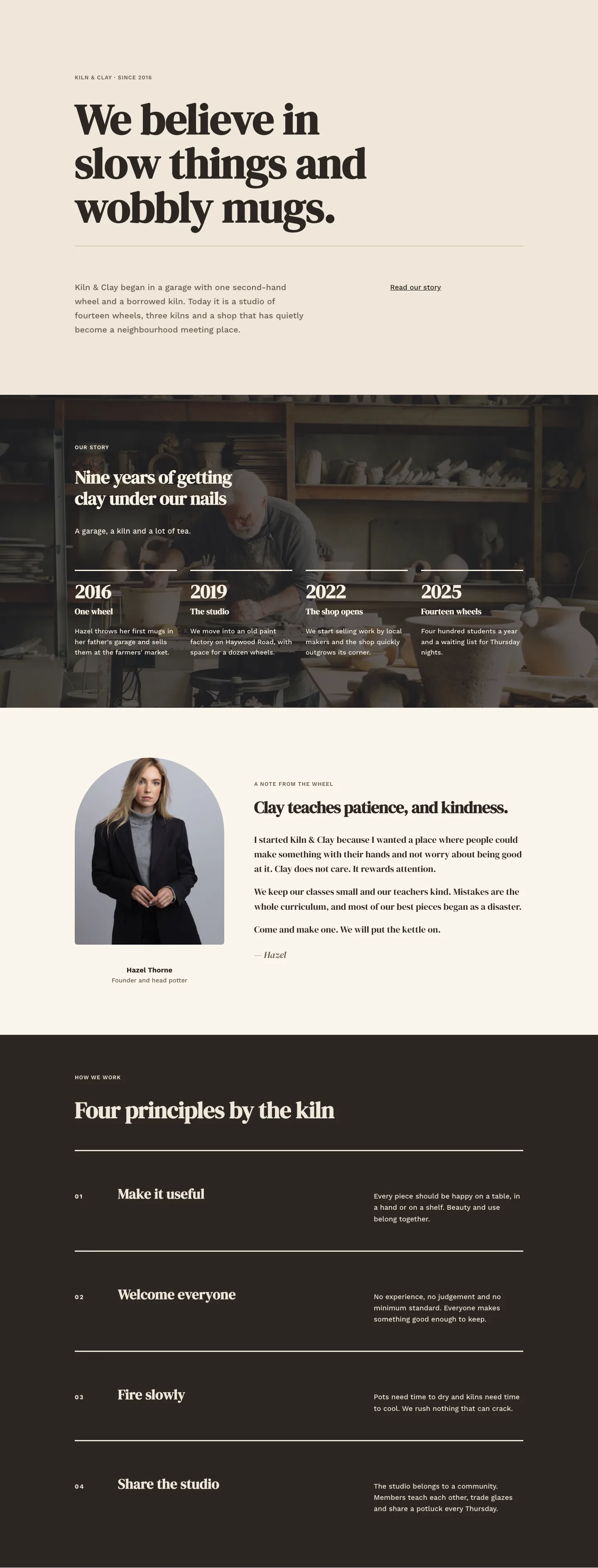
Kiln & Clay — Minimal Pottery_studio Our Story Page for Divi 5
full_landing · pottery_studio · minimal
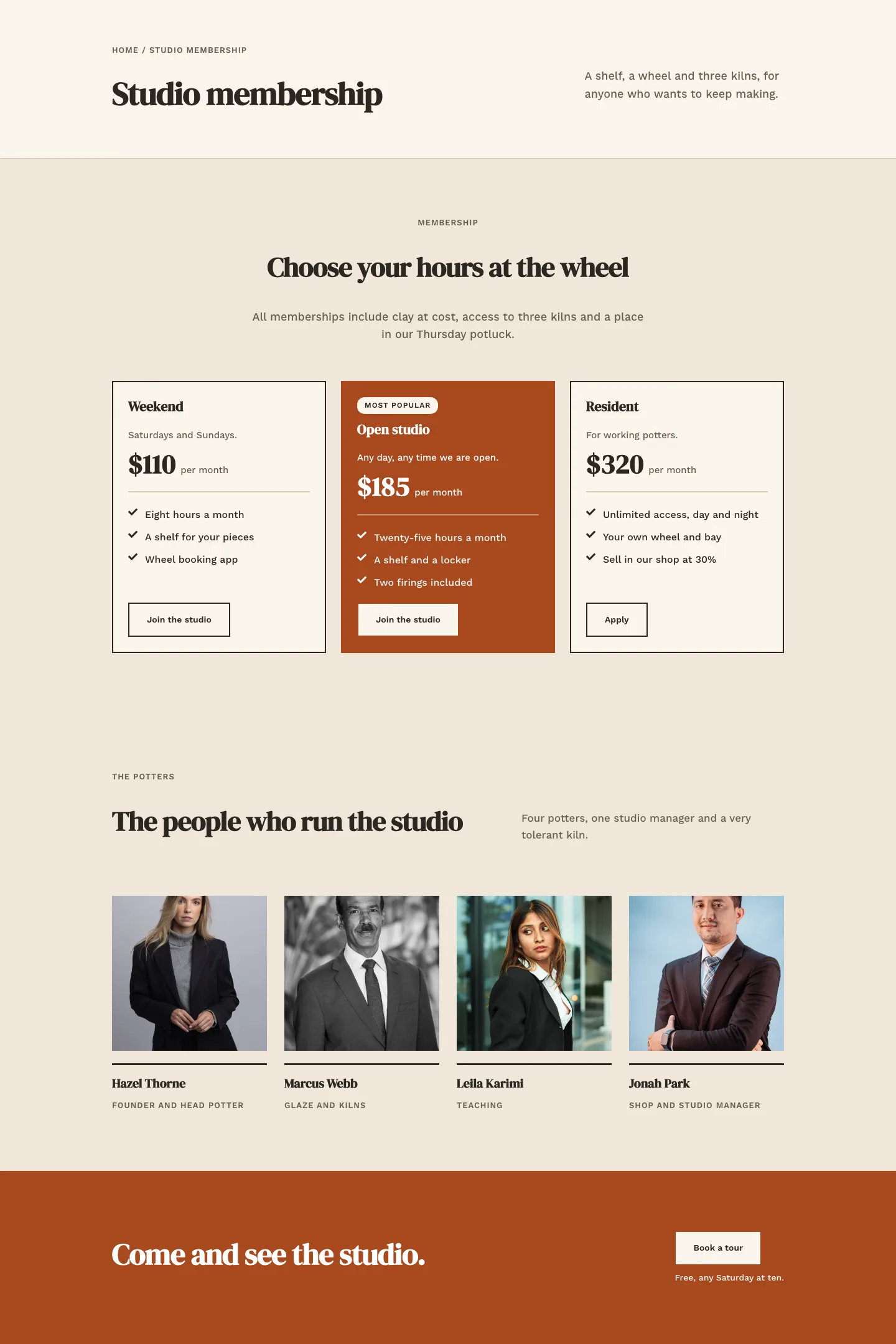
Kiln & Clay — Minimal Pottery_studio Studio Membership Page for Divi 5
full_landing · pottery_studio · minimal
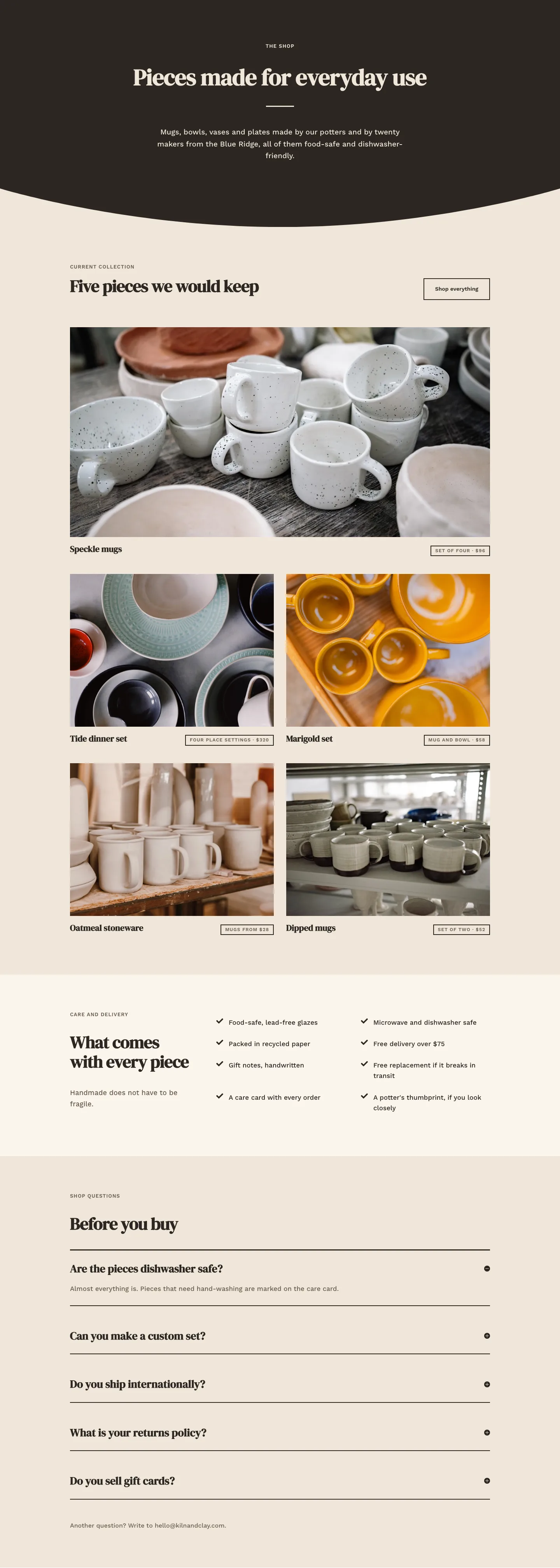
Kiln & Clay — Minimal Pottery_studio The Shop Page for Divi 5
full_landing · pottery_studio · minimal
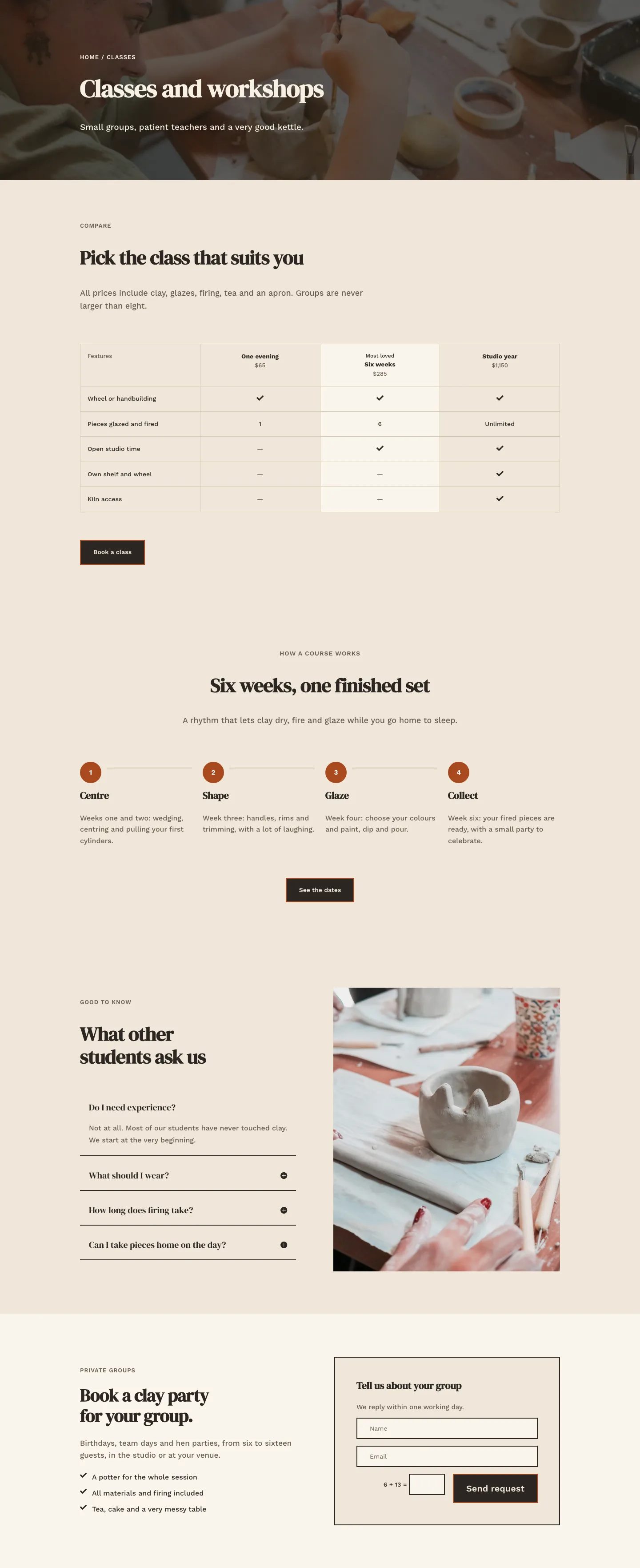
Kiln & Clay — Minimal Pottery_studio Classes Page for Divi 5
full_landing · pottery_studio · minimal
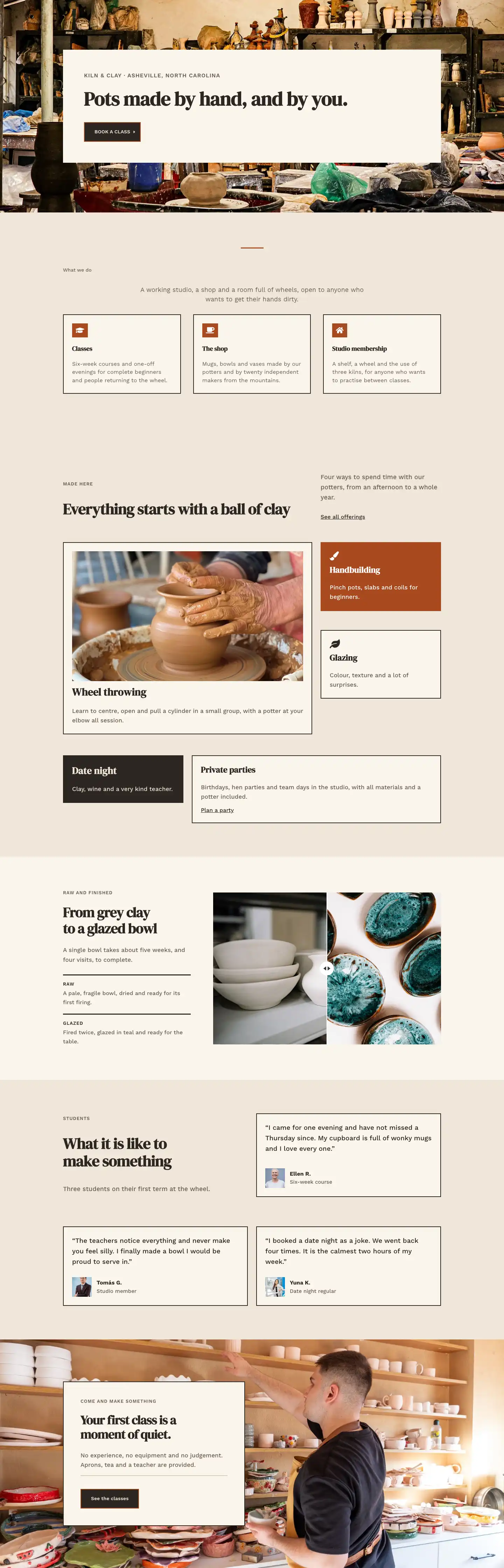
Kiln & Clay — Minimal Pottery_studio Home Page for Divi 5
full_landing · pottery_studio · minimal