
Sundrop Solar — Corporate Solar Solar Panels Page for Divi 5
Learn how rooftop solar panels work, compare buying vs leasing, and see real installation case studies. Get a free solar quote with a design and price in one working day.
Rate this element
Download this section, free
- Divi 5 JSON, imports in seconds
- Commercial license included
- No account needed
This page ships inside Sundrop: Solar Installer Theme (6 Pages), 6 coherent pages that share one brand.
Click to view the full page
Overview
The hero opens on a full-bleed photograph of rooftop solar panels, with a 72% dark navy overlay (applied as a gradient at both stops, rgba(20,32,59,0.72)) that pulls the headline forward without burying the image behind it. A left-aligned breadcrumb sits above the H1 in small-caps Poppins, then the title steps from 56px on desktop to 32px on phone across three explicit Divi breakpoints. The lead text is constrained to a 600px maximum width to keep the line length comfortable on wide monitors. Vertical padding follows the same three-step scaling: 120px on desktop, 88px on tablet, 64px on phone, so the proportions hold at every size without manual overrides.
The process section arranges four steps (Capture, Convert, Use, Sell) inside a CSS grid: four columns on desktop, two on tablet, one on phone. Each column is anchored by a 48px burnt-orange circle (color #c2410c) holding the step number, followed by a horizontal rule in warm cream (#ecdcc0) that visually connects the steps across the row on desktop. That rule is explicitly disabled on phone via Divi's built-in breakpoint setting, so the steps read as a clean vertical list rather than a broken inline layout. A centered button below the grid carries the visitor toward an estimate. The following section brings the buy-vs-lease decision into focus with two side-by-side cards: the lease card sits on warm parchment (#fdf0d8) and lists drawbacks using grey X icons; the buy card inverts to deep navy (#1b2a4a) with ivory check icons, making the recommended path unmistakably clear. Both cards share the same 8px border-radius, 1px border, and hard 4px vertical box shadow that recurs on every button throughout the layout.
Three case-study rows alternate image and text in a 50/50 split, each photo locked to a 4:3 aspect ratio with object-fit cover so any replacement fills the frame without distortion. The second row reverses its image position on mobile using Divi's column order property, breaking the visual repetition without any extra CSS. Each story follows a tight template: a numbered label (01, 02, 03), an H3 project title, two to three sentences of outcome-focused detail, and a short underlined link.
The FAQ occupies a warm amber section (#fdf0d8) that distinguishes it from the surrounding ivory panels. Six questions spread across two equal columns, each entry introduced by a 2px navy top border rather than a full horizontal rule. The heading block occupies a wider left column and pairs with an outline-style ghost button on the right. The page closes with a solid burnt-orange CTA band that places the headline and primary button side by side on desktop, stacking gracefully to a single column on phone. The four-colour palette (ivory, amber, navy, orange) stays consistent across all six sections, producing a warm, considered feel well matched to a high-value rooftop purchase.
What’s inside
- Full-bleed hero section with a Pexels photo background, 72% dark navy gradient overlay, breadcrumb navigation, responsive H1 (56px to 32px), and a max-width constrained subtitle text block
- Four-step process grid (Capture, Convert, Use, Sell) with burnt-orange 48px numbered circles, cream horizontal connecting rules hidden on mobile, and a centered CTA button below the grid
- Side-by-side buy-vs-lease comparison cards with Font Awesome icon lists (check and X), contrasting fills (parchment vs. deep navy), 8px radius borders, and a hard 4px box shadow consistent across the layout
- Three alternating 50/50 image-and-text case-study rows with 4:3 aspect-ratio images, numbered project labels (01, 02, 03), and inline underlined text links
- Two-column FAQ block with six questions styled using 2px navy top-border rules, paired with a ghost-button CTA on the right that sits flush with the section heading
- Full-width burnt-orange CTA banner with a flex row (headline left, button right) on desktop that stacks to a single column on phone
Who it’s for
This layout is a strong fit for residential solar installation companies, cleantech startups, and regional energy consultants who want a polished dedicated page for their panels offering. It also works for roofing contractors that have added solar to their services, eco-home builders presenting an energy package, and utility providers launching a residential solar programme. The honest buy-vs-lease comparison and numbered project case studies are especially well matched to businesses that handle high-consideration decisions and need to earn trust before a homeowner books a site visit.
Customization tips
The palette is built from four values: ivory (#fffaf0), amber (#fdf0d8), navy (#1b2a4a), and orange (#c2410c). Swapping orange for a green (#16a34a or similar) and replacing navy with a deeper forest tone converts the look to a sustainability-led brand without touching any structure. For the hero, keep the overlay gradient opacity between 60% and 80% so the headline stays readable against any replacement photo. All three case-study images are set to a 4:3 aspect ratio with object-fit cover, so supply replacements at a minimum of 1200 x 900 pixels. The step labels (Capture, Convert, Use, Sell) and all six FAQ entries are plain Divi Text and Heading modules, editable directly in the visual builder. The two highest-impact copy changes are the buy card CTA ("Compare for my home") and the final banner button ("Get a free solar quote"); update those first to match your specific service area and offer.
How to install this layout
- Download the layout JSON file from this page.
- Open the target page in the Divi 5 builder.
- Open the portability panel (up/down arrows icon) and choose the Import tab.
- Upload the JSON. Tick “replace existing content” only for full-page imports.
- Check the page at desktop and mobile widths, then swap in your copy and images.
Full walkthrough with troubleshooting: How to Import a Divi 5 Layout.
Questions about Sundrop Solar — Corporate Solar Solar Panels Page for Divi 5
How does the four-step process grid behave at smaller screen widths?
On tablet it collapses to a 2x2 grid. On phone it goes to a single column. The horizontal cream divider lines that connect the numbered circles on desktop are disabled at phone size via Divi's built-in "disabled on" breakpoint setting, so the steps read as a tidy vertical list rather than a broken inline row.
What modules make up the buy-vs-lease comparison cards?
Each card is a Divi Group module with its background color, border, and box shadow set in the decoration options. Inside, each bullet row is a nested Group containing an Icon module (Font Awesome check or X) and a Text module placed side by side. To add or remove a bullet, duplicate or delete one of those inner Groups within the card.
The second case-study row shows the image on the right on desktop but above the text on mobile. How is that done?
Divi's column order decoration is set to -1 on the image column at the phone breakpoint. That pulls the image above the text on small screens without changing the desktop layout, so the alternating rhythm is preserved on both.
How are the FAQ entries structured so I can add or reorder them?
Each entry is a Divi Group module containing an H3 Heading and a Text module. The 2px navy top border is a border decoration applied directly to the Group, not a separate divider module. To add a question, duplicate any Group within the column; to reorder, drag it up or down in the Divi builder layer view.
Can I replace the hero background photo with my own?
Yes. The image is set as a section background with the overlay gradient sitting on top of it. Open the section's Background settings, upload your photo in the Image tab, and adjust the gradient opacity in the Gradient tab if your photo is noticeably lighter or darker than the original.
Which Divi version does this layout need?
Divi 5. The layout is generated natively for Divi 5 and validated against its real module structure before publication, so it imports clean into the current builder.
Can I use this layout on client websites?
Yes. Every download includes a commercial license covering unlimited sites you own or build for clients. Only reselling or redistributing the layout file itself is prohibited.
Included in these packs
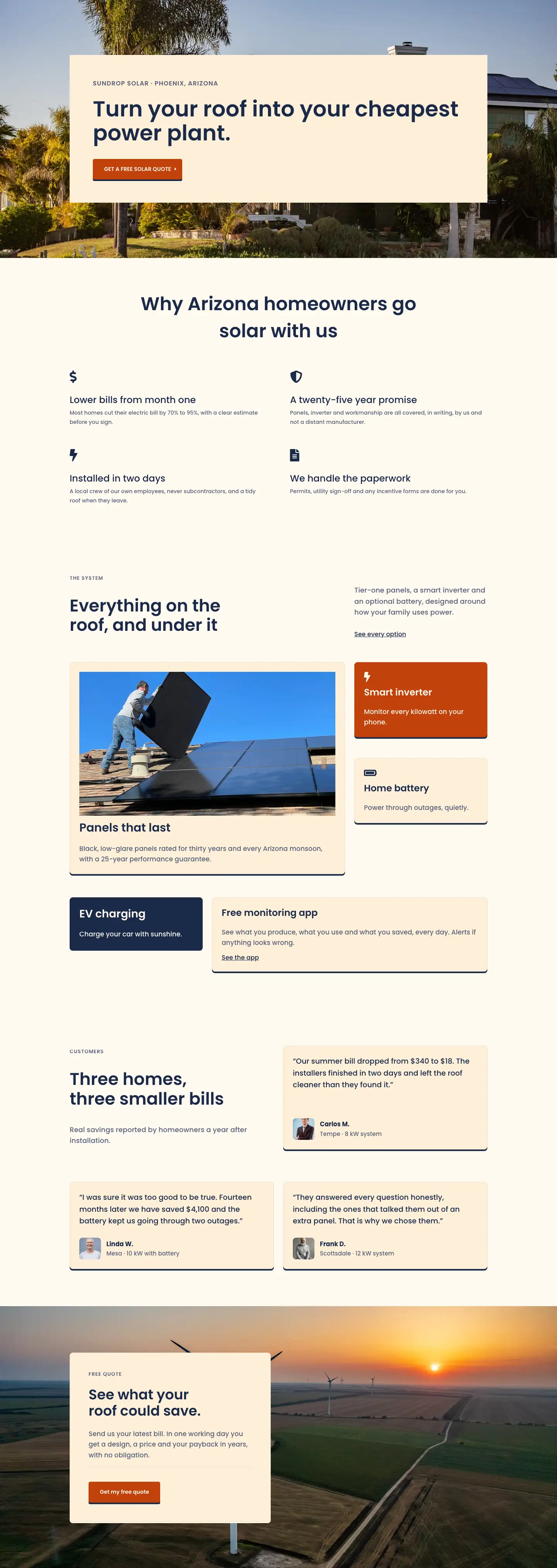
More full landing pages
Browse all full landing pages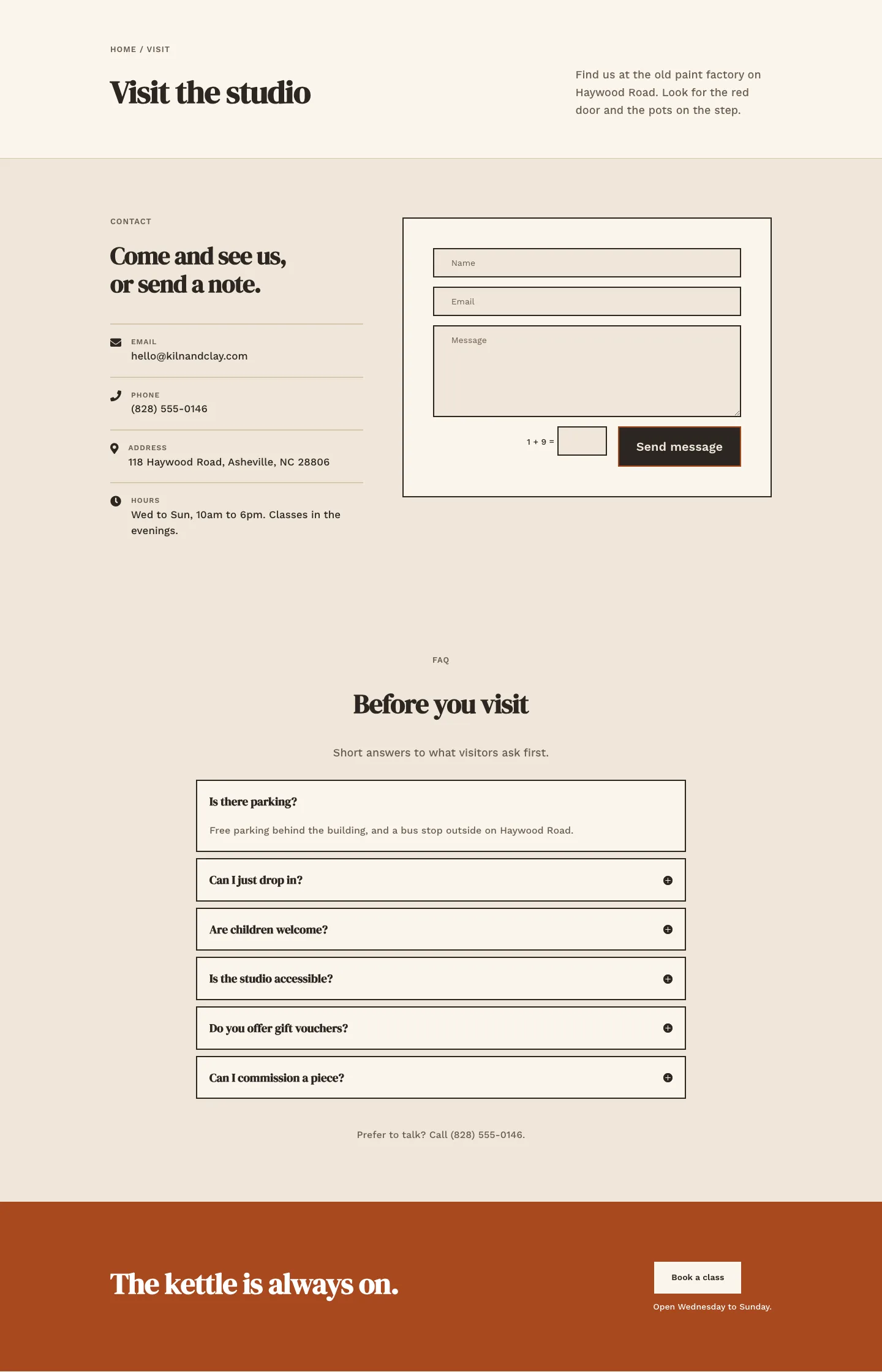
Kiln & Clay — Minimal Pottery_studio Visit Page for Divi 5
full_landing · pottery_studio · minimal
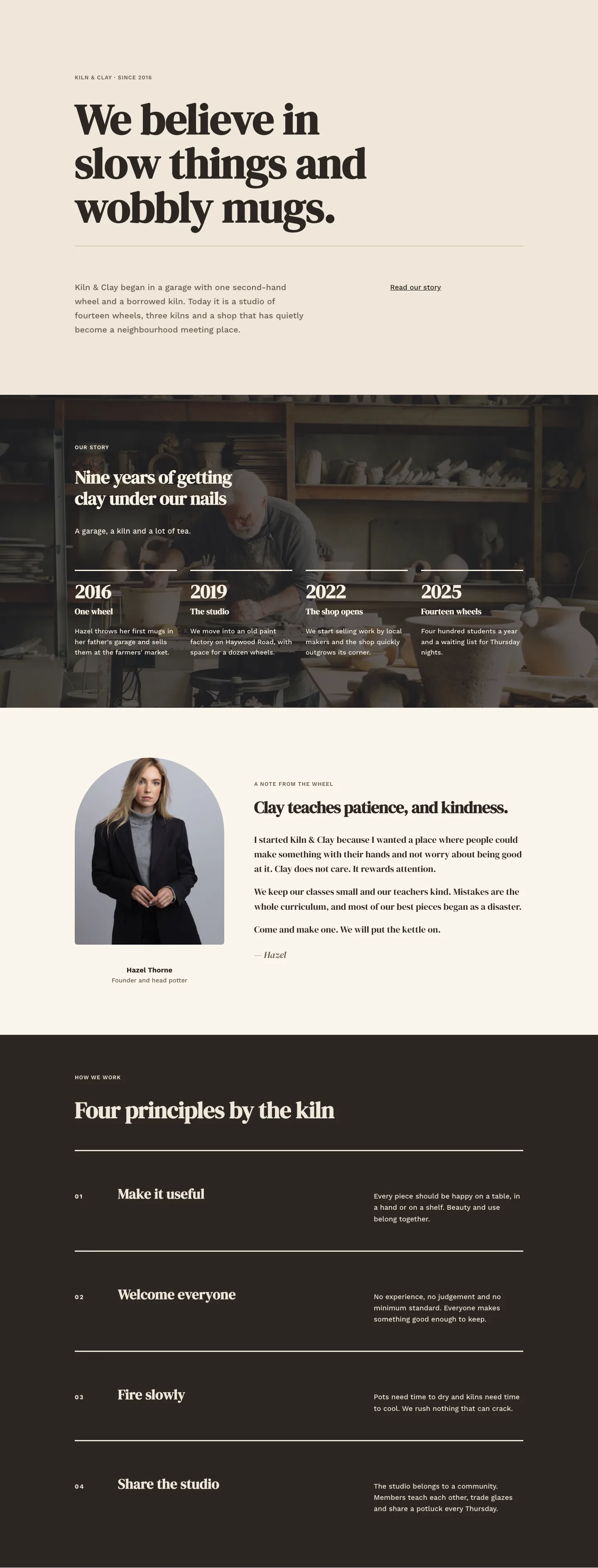
Kiln & Clay — Minimal Pottery_studio Our Story Page for Divi 5
full_landing · pottery_studio · minimal
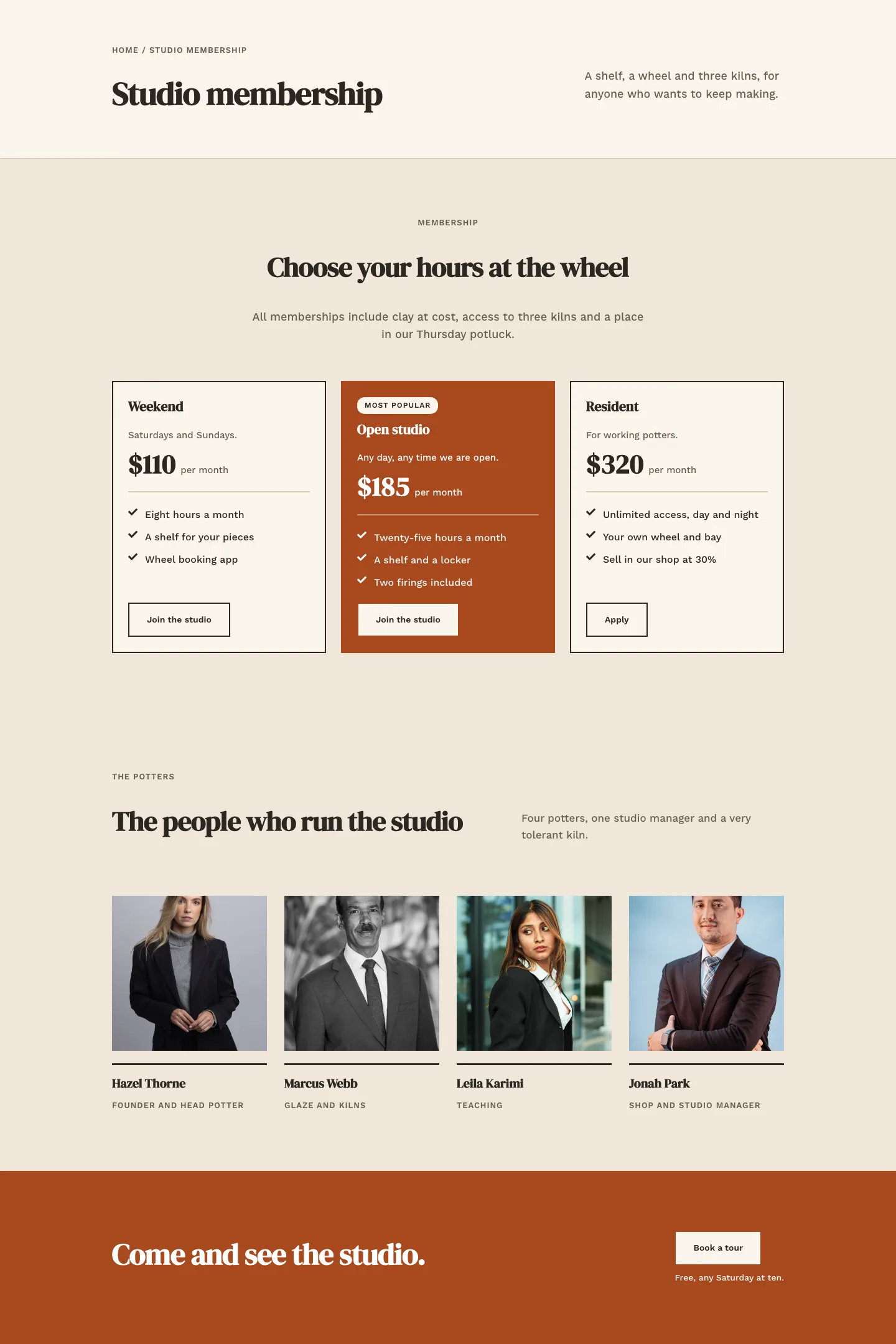
Kiln & Clay — Minimal Pottery_studio Studio Membership Page for Divi 5
full_landing · pottery_studio · minimal
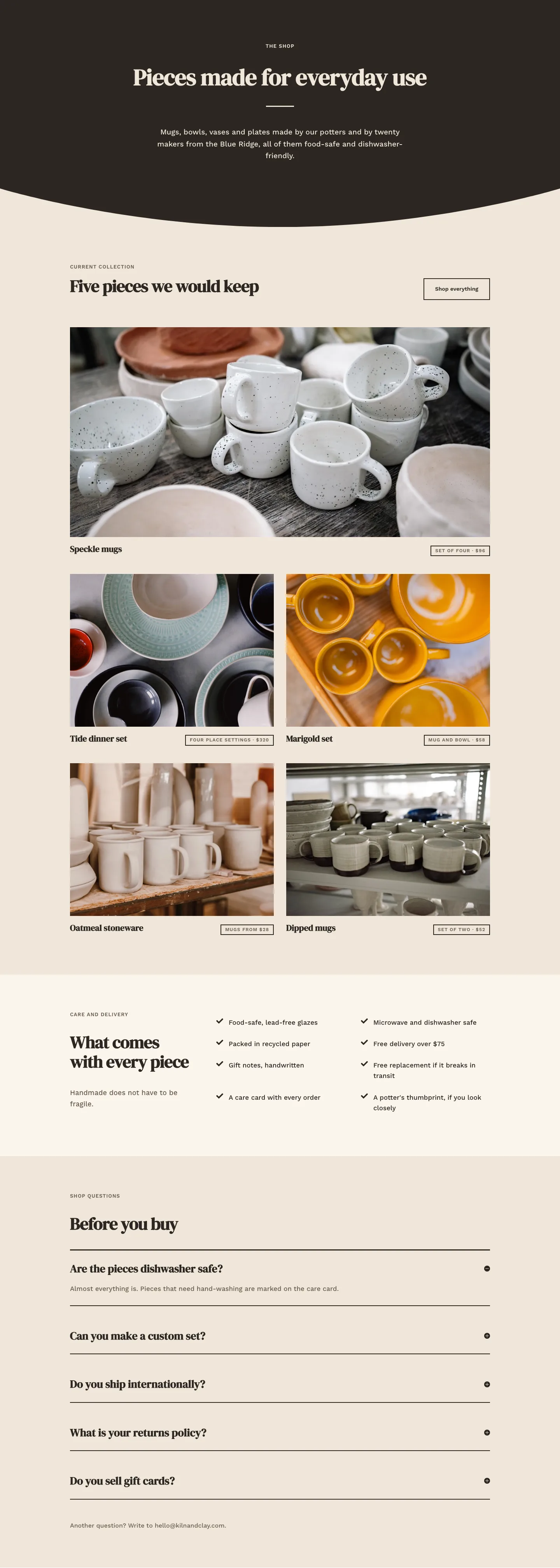
Kiln & Clay — Minimal Pottery_studio The Shop Page for Divi 5
full_landing · pottery_studio · minimal
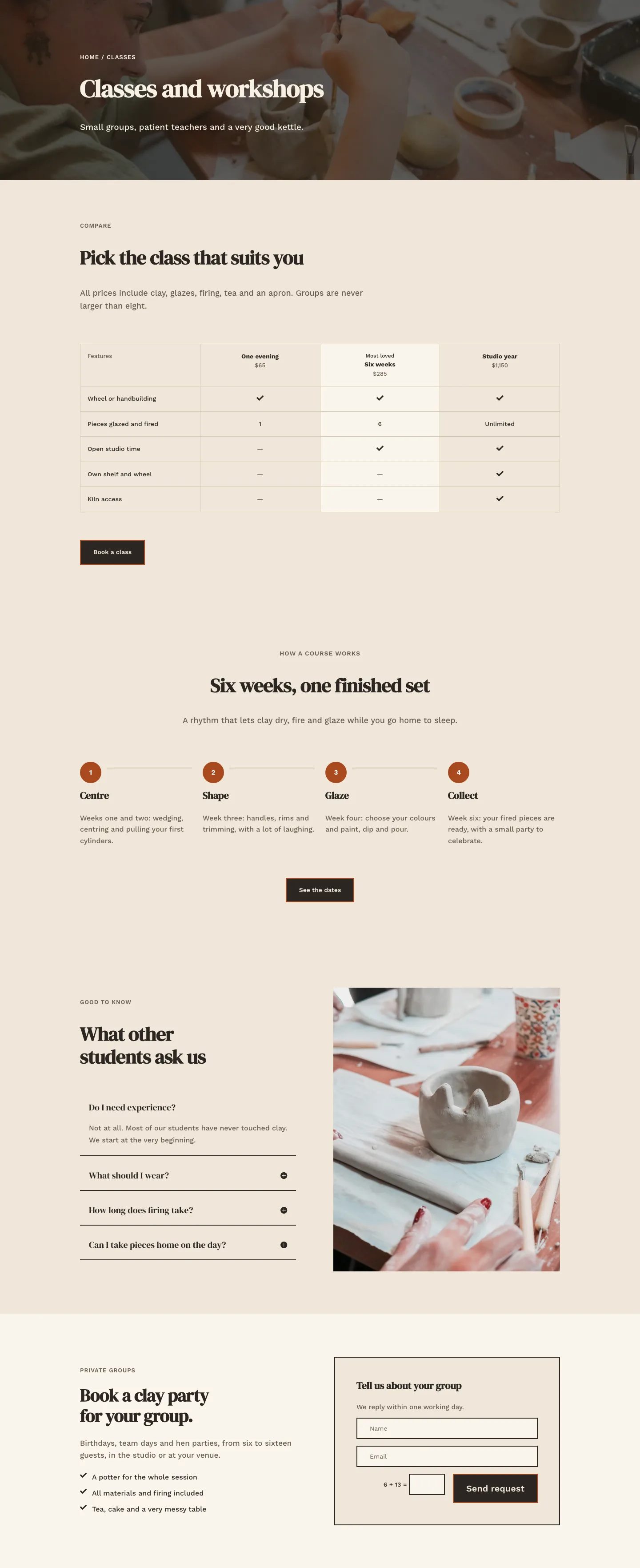
Kiln & Clay — Minimal Pottery_studio Classes Page for Divi 5
full_landing · pottery_studio · minimal
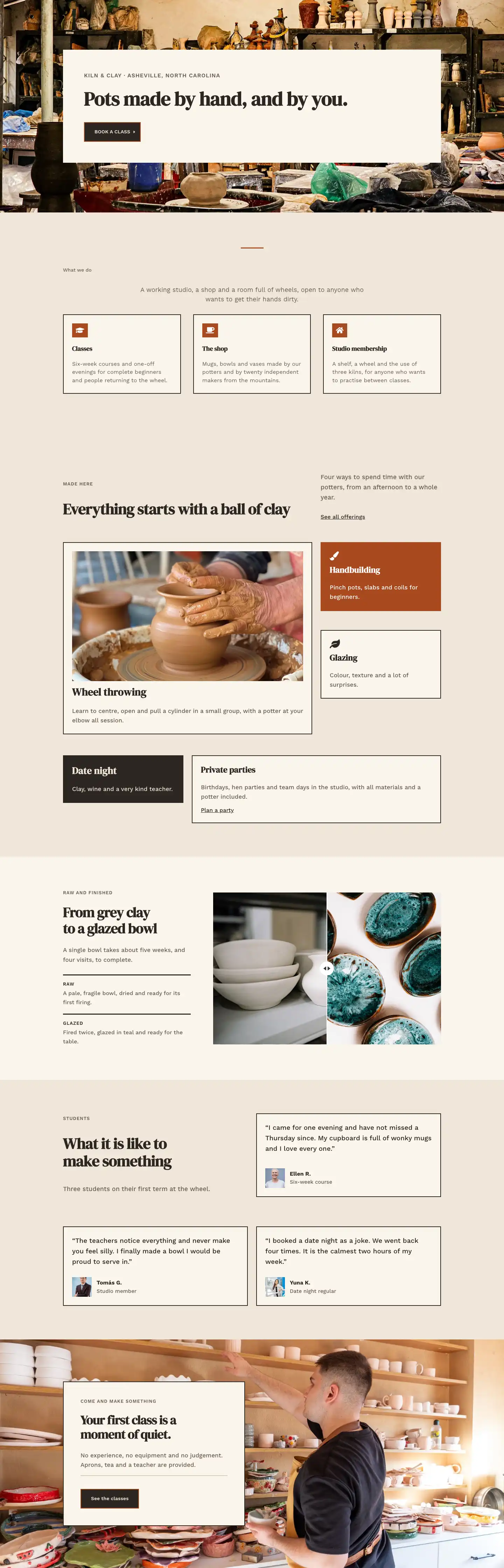
Kiln & Clay — Minimal Pottery_studio Home Page for Divi 5
full_landing · pottery_studio · minimal